How to Transfer Music from a Computer to iPhone Without iTunes
Short answer
- Open Prismatic Music, tap Add Music → From Computer, and tap Start Wi-Fi Import. Your iPhone shows a six-digit code and a local web address.
- On the computer, open prismatic.fm/transfer in any browser, type the code, and drag your files or folders onto the page. If no code is shown, type the local address instead — it goes to the same place.
- The music travels directly over your local network — it never passes through prismatic.fm — and lands in your library ready to play offline.
- Works from Windows, macOS, Linux, or ChromeOS. Nothing to install on the computer, and no cable.
- Takes about
- 5 minutes
- You'll need
- An iPhone or iPad with Prismatic Music · A computer on the same Wi-Fi network · Music files you own (MP3, FLAC, M4A, WAV…)
On this page
Bring your own songs over Wi-Fi
Get Prismatic Music for iPhone and iPad, then start the import from your computer’s browser.
You have a folder of music on a computer. You want it on your iPhone. For roughly two decades the only sanctioned answer involved a cable, a desktop application, and a sync model that treated your phone as a mirror of your computer rather than a device with a library of its own.
That model is still there, and it still works, but it's no longer the only option — and for most people it's no longer the best one. This guide covers the alternatives honestly, then walks through the fastest of them: dragging music from your computer's browser straight into your iPhone over your own Wi-Fi network.
Why moving music onto an iPhone got hard
Three things happened.
iTunes was split up. On a Mac, syncing moved into the Finder in macOS Catalina; on Windows, Apple has been replacing iTunes with separate Apple Music and Apple Devices applications. Neither transition changed the underlying model, but both scattered the instructions people had memorized, which is why so many searches for this still end in "…without iTunes".
Sync is a mirror, not a copy. Apple's music sync makes the device match the computer's library. Music on the phone that isn't in the computer's library can be removed to make that true. That is exactly what you want for a backup, and exactly what you don't want when you're collecting music from several places over several years.
Streaming trained everyone out of file management. Most modern music apps have no concept of a file at all, so when you finally do have files — a Bandcamp purchase, a DJ pool download, a friend's band, a set of field recordings, a CD you ripped — there's nowhere obvious to put them.
The result is a genuinely awkward gap: you own the music, it's sitting on a computer four feet away, and getting it onto the phone in your pocket feels like it needs an adapter and an afternoon.
The four routes compared
There are four real ways to get music files from a computer onto an iPhone. None of them is wrong; they're good at different things.
| Route | Needs a cable | Needs software on the computer | Keeps the phone's own library |
|---|---|---|---|
| Finder / iTunes sync | Yes | Yes | No — it mirrors the computer |
| A cloud drive (iCloud Drive, Dropbox, Google Drive) | No | Usually an account and an app | Yes, but files stay in the cloud until downloaded |
| AirDrop (Mac only) | No | No | Yes — one batch at a time |
| Wi-Fi import into a player, like Prismatic Music | No | No — just a browser | Yes |
Finder or iTunes sync is the right tool if you want your phone to be a faithful copy of a curated desktop library and you don't mind plugging in. Its weakness is the mirror model and the cable.
A cloud drive is convenient if your music already lives in one. The catch is that a file in iCloud Drive isn't necessarily on your phone — it's a placeholder until it's downloaded, which is why "my music won't play on the plane" is such a common complaint. (If you go this route, see how to play music from the Files app, which covers the download-before-you-fly problem in detail.)
AirDrop is excellent for a handful of songs from a Mac and miserable for four hundred. There's no folder structure, no resume, and no progress worth the name.
Wi-Fi import is the one people don't know exists: your phone opens a temporary receiving session on your local network, your computer's browser connects to it, and you drag music across. No cable, no account, no software install, no cloud middleman. That's the route below.
Transfer music over Wi-Fi with Prismatic Music
Prismatic Music is a free offline player for iPhone and iPad. One of its import sources is From Computer, which is a browser-to-phone transfer over your local network. Here's the whole flow.
Step 1: Open Add Music on your iPhone
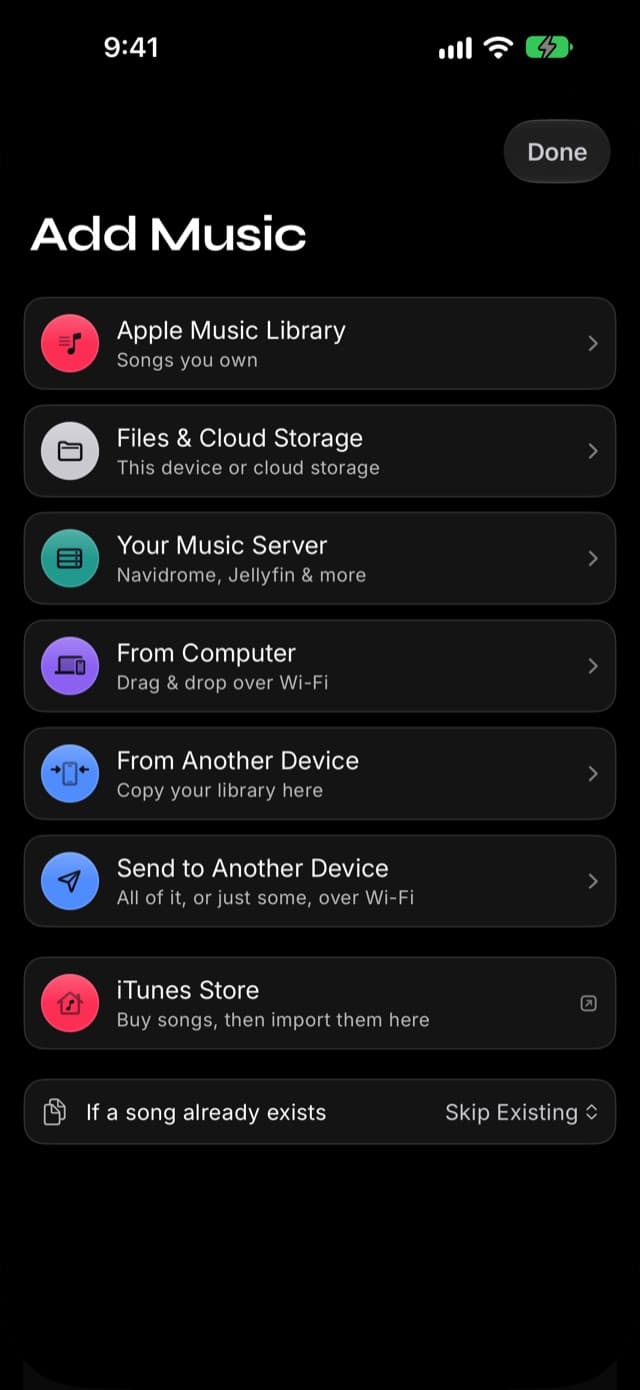
Open Prismatic Music and tap Add Music on the Home tab. Every way into your library lives on this one screen — your Apple Music library, the Files app, another device, and the computer route we want here.
Step 2: Tap From Computer, then Start Wi-Fi Import
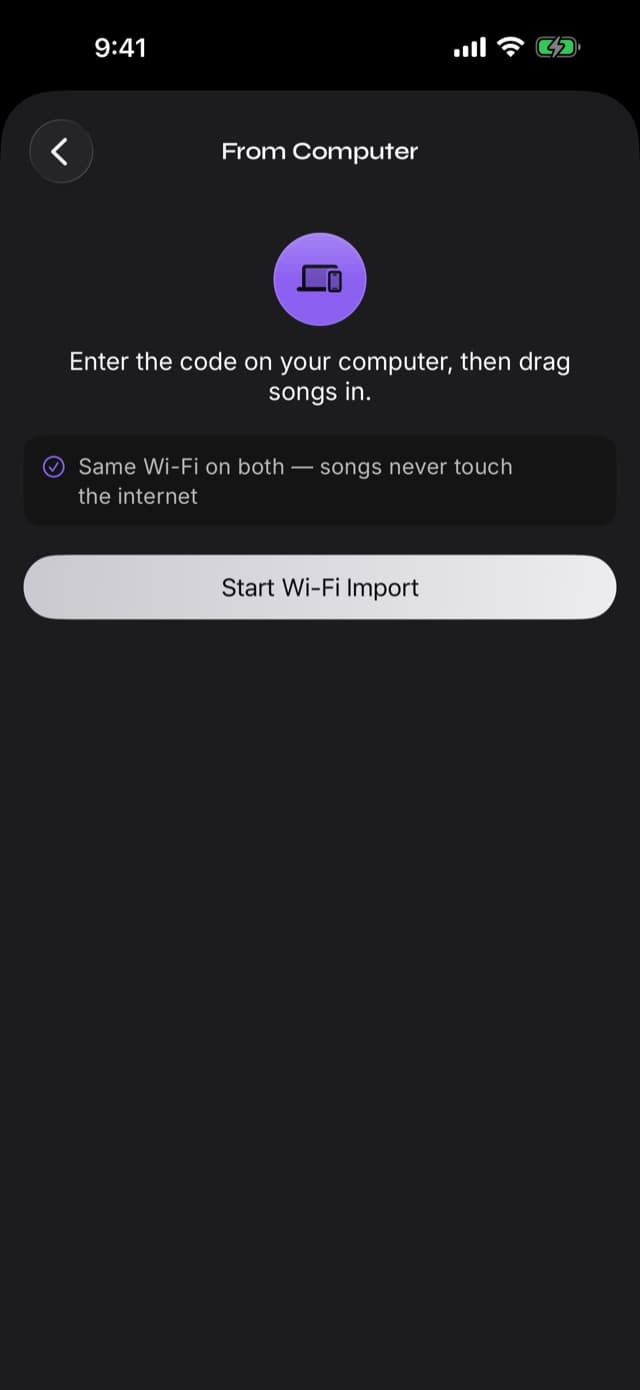
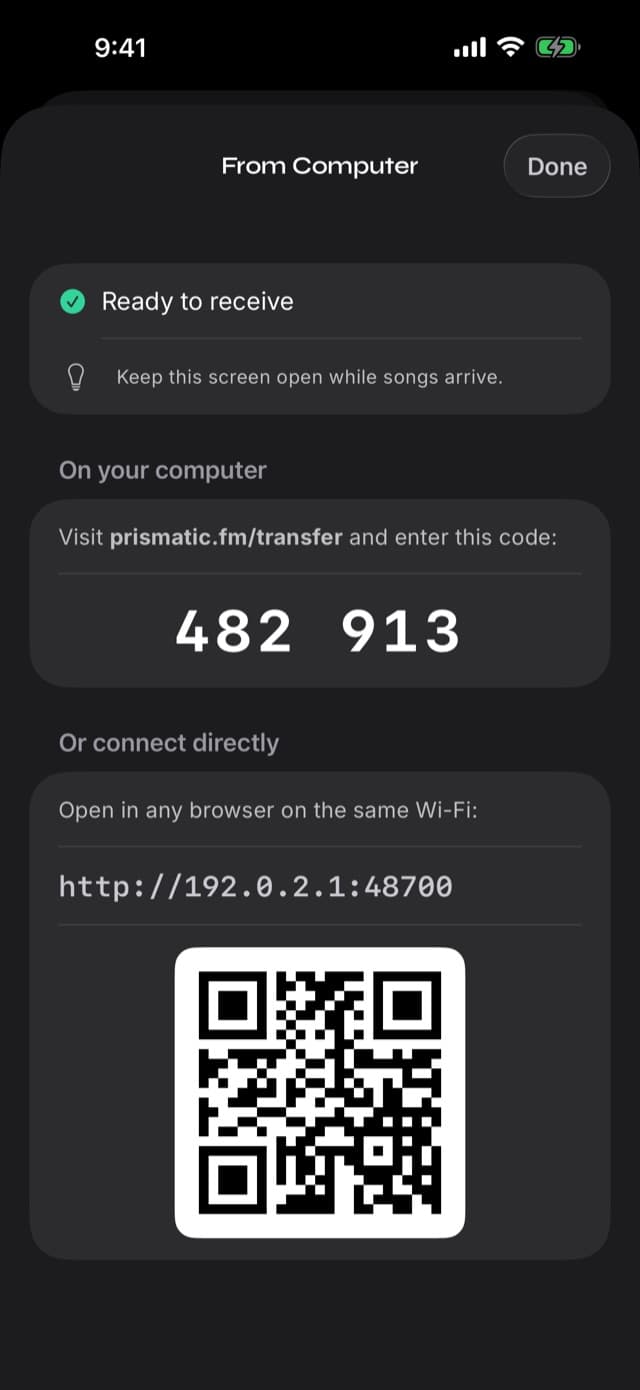
The detail page explains what's about to happen and notes the one requirement that matters: both devices need to be on the same Wi-Fi. Tap Start Wi-Fi Import and your iPhone opens a receiving session.
You'll see a six-digit code, a local web address like
http://192.168.1.42:48700, and a QR code. Any of the three gets you
connected — the code is simply the easiest thing to type on a keyboard.
Step 3: Open prismatic.fm/transfer on the computer
On the computer, open prismatic.fm/transfer in any browser and type the six-digit code from your phone.
That page does exactly one thing: it looks up which address on your local network the code belongs to, and sends your browser there. From that moment the connection is between your computer and your phone.
If your phone doesn't show a code, nothing is broken. The code is handed
out by a small lookup service on the internet, so a phone that can't reach it —
on a network with no internet, or one that blocks it — shows only the
http://… address instead. Type that address into the computer's browser and
the transfer works exactly the same way. The music was never going to travel
over the internet regardless; the code is a convenience for finding your
phone, not part of the transfer.
Step 4: Drag your music onto the page
Now drag files onto the drop zone — or drag whole folders. Prismatic walks the entire tree, subfolders included, and picks up every supported audio file it finds: MP3, M4A, AAC, FLAC, WAV, AIFF, CAF, MP4, OGG, and Opus.
This is where the Wi-Fi route pulls ahead of everything else. A twenty-album folder is one drag, not twenty AirDrops or a sync configuration.
Step 5: Let it finish, then close the session
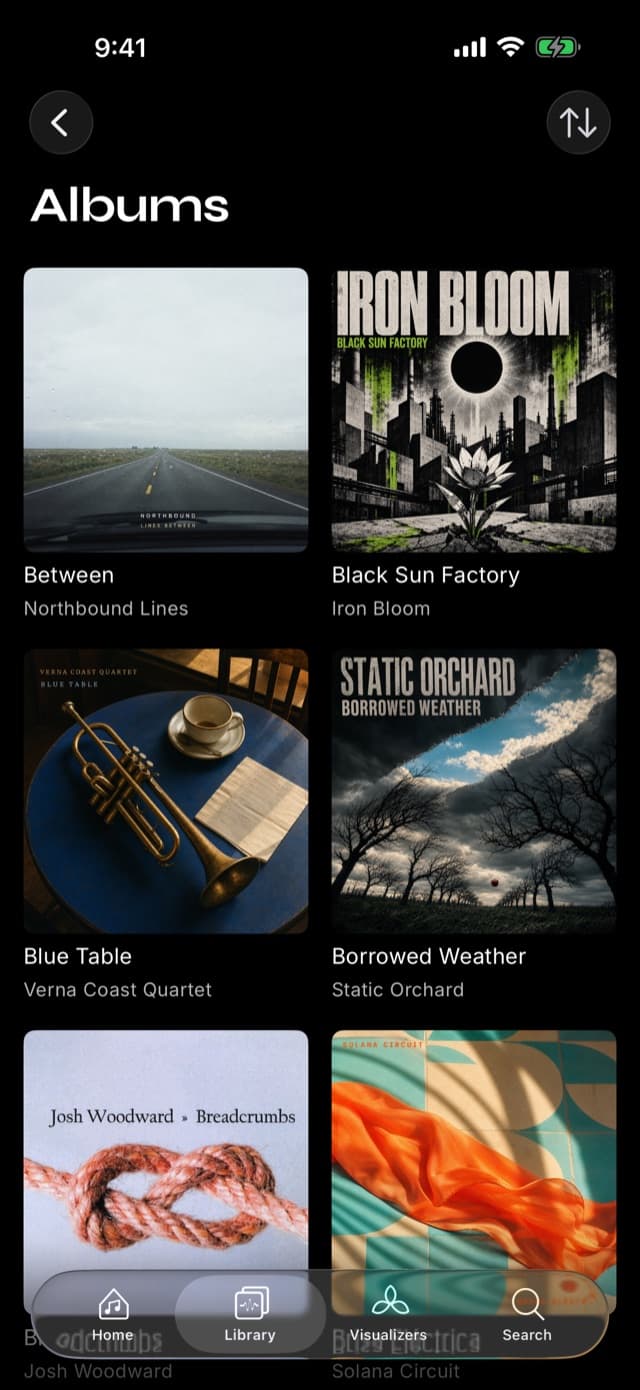
Songs are copied across and added to your library as they arrive, tags and embedded artwork included, so albums land assembled rather than as a pile of filenames. The import panel on the phone shows live progress.
Keep Prismatic Music in the foreground while the transfer runs — iOS suspends background apps aggressively, and a suspended app can't receive files. When the last song lands, close the session on the phone.
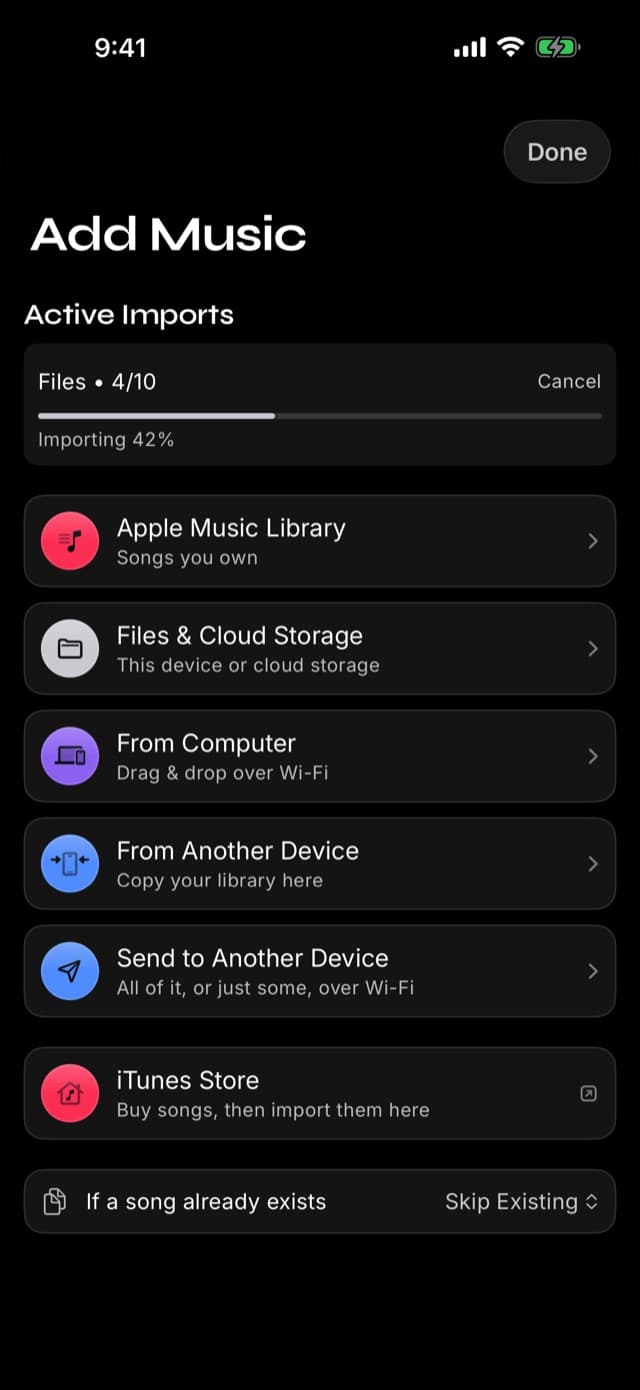
Duplicates are handled for you. The Add Music screen has a duplicates setting — skip, replace, or keep both. The default is to skip anything already in your library, so re-dragging a folder to catch the three albums you added last week costs you nothing but the time to check.
What happens to your files
Worth being precise about, because it's the difference between music that plays on a plane and music that doesn't.
The audio is copied onto your device. Imported songs are stored inside Prismatic Music's own storage on the iPhone — not referenced from the computer, not streamed from it later. Once the transfer finishes you can shut the computer down, leave the house, and switch on Airplane Mode; the music plays.
Nothing is uploaded. The transfer runs over your local network. The prismatic.fm/transfer page brokers the introduction between browser and phone and then gets out of the way — the audio never touches our servers, and there is no account, no cloud library, and no server-side matching involved.
Files aren't re-encoded. A FLAC arrives as a FLAC; a 320 kbps MP3 arrives as a 320 kbps MP3. Nothing is transcoded on the way in, which is the point of keeping a lossless collection at all. See FLAC and lossless on iPhone for what that means in practice.
Your computer's library is untouched. This is a copy, not a sync. Nothing on the computer is moved, renamed, deleted, or reorganized, and nothing on the phone gets removed to make the two match.
When the computer can't find your iPhone
Nearly every failed transfer is a networking problem, and nearly every networking problem is one of these four.
The two devices are on different networks. The most common cause by far. Many homes run separate 2.4 GHz and 5 GHz network names, and many offices and cafés put guests on an isolated network. Check that the Wi-Fi name on the phone matches the one on the computer exactly.
A VPN is running on the computer. A VPN routes traffic away from your local network, so the browser tries to reach your phone through a data center in another country. Turn it off for the transfer.
The phone is on cellular. If Wi-Fi dropped, the phone will happily keep working on cellular data and the local address it's advertising will be unreachable. Re-join the Wi-Fi network.
Client isolation is on. Some routers — and most public networks — stop devices on the same Wi-Fi from talking to each other. That's a router setting (often called AP isolation or client isolation) and it's why hotel Wi-Fi is a bad place to do this. Use a home network, or a personal hotspot from the phone with the computer joined to it.
If the connection succeeds but the session ends by itself, the usual cause is the app being backgrounded on the phone. The session screen says as much when it stops — "Stopped (you left Prismatic)" — and starting again picks up the songs that didn't make it, skipping the ones that did.
What this cannot do
An honest guide has to include the limits.
It can't import Apple Music streaming downloads. Songs downloaded from the Apple Music subscription service are copy-protected. No third-party player — ours included — is permitted to play them, so they can't be imported from your computer or anywhere else. What imports is music you own: iTunes Store purchases, ripped CDs, Bandcamp and Qobuz downloads, promos, your own recordings. If you cancel a streaming subscription that music was never yours; the library you build here is.
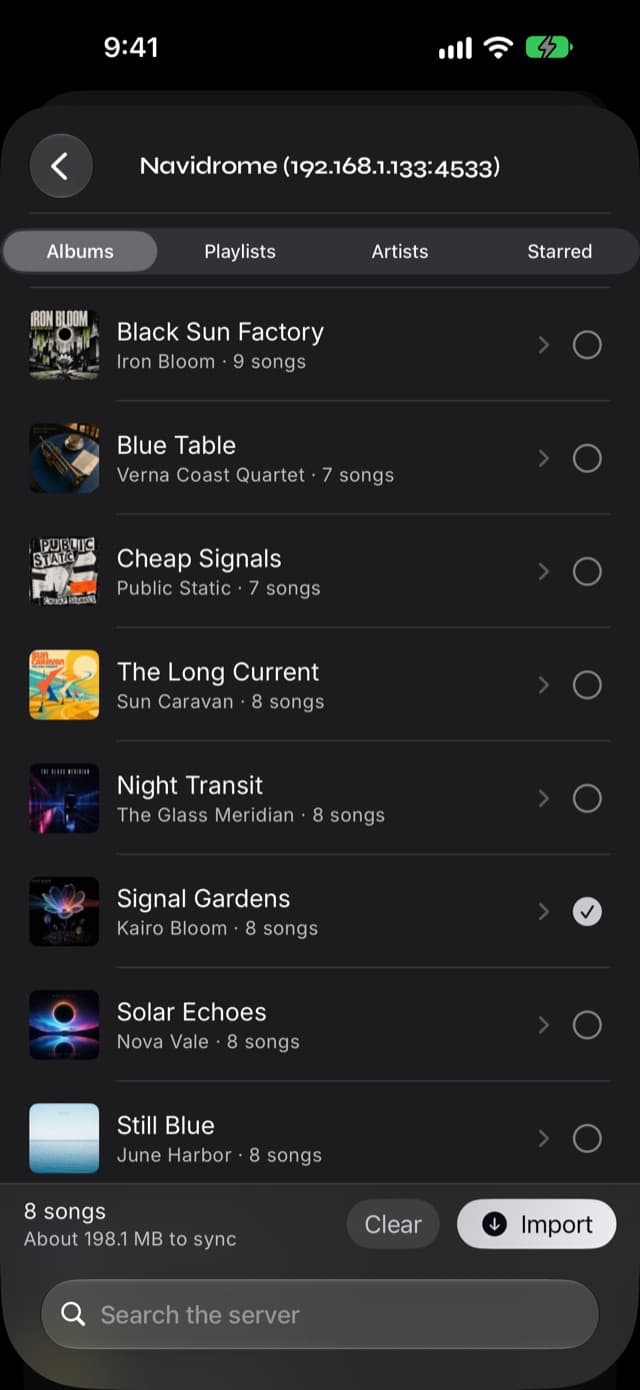
It can't reach a computer you're not on the same network as. This is a local-network transfer by design. There's no remote mode, because a remote mode would mean routing your music through somebody's server. (If your music already lives on a server you run — Navidrome, Jellyfin, Emby — that one does work from anywhere over HTTPS: see importing from your own music server.)
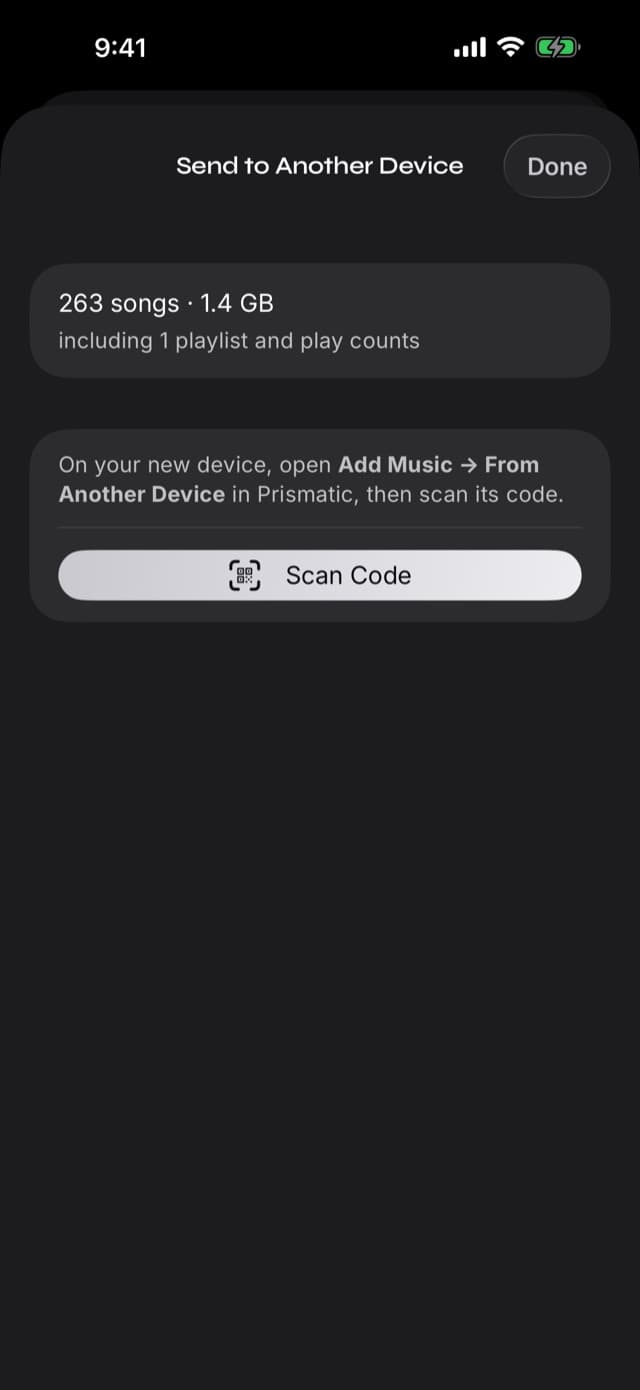
It isn't a two-way sync. Prismatic Music doesn't write back to your computer's folders or keep them in step. If you want a whole library moved between two phones, that's a different tool — the device-to-device transfer, which does carry playlists and play counts across.
Windows, Mac, Linux — it's the same page
Because the computer half of this is a web page, the operating system on the computer is irrelevant. Windows 10 and 11, macOS, Linux, ChromeOS — if it has a modern browser and it's on your Wi-Fi, it can drag music into your iPhone.
That's a genuine advantage over Apple's own route, which requires Finder on a Mac or the Apple Devices application on Windows and offers nothing at all on Linux. It also means no admin rights, no installer, and nothing left behind on a computer that isn't yours.
Once your music is in, the rest of the app is waiting for it: a real 10-band equalizer, native FLAC and ALAC playback, and visualizers that react to the actual audio rather than to a preset loop.
Common questions
- Can I transfer music to my iPhone without iTunes?
- Yes. Apple's own sync (iTunes on Windows, Finder on a Mac) is only one route. A player with its own import path — like Prismatic Music's Wi-Fi transfer — takes files straight from your computer's browser over your local network, with no cable and nothing installed on the computer.
- Do I need to install anything on my computer?
- No. The computer side is a web page: open prismatic.fm/transfer in any browser, enter the code shown on your iPhone, and drag your music in. Windows, macOS, Linux, and ChromeOS all work the same way.
- Does my music get uploaded to the internet?
- No. prismatic.fm/transfer only helps the two devices find each other on your network; the audio itself is sent directly from your computer to your iPhone over your local Wi-Fi. The files never pass through our servers.
- Can I transfer a whole folder of albums at once?
- Yes. Drop a folder — or several — and Prismatic walks the whole tree, subfolders included, importing every supported audio file it finds. Duplicates are skipped by default.
- What audio formats can I send?
- MP3, M4A, AAC, FLAC, WAV, AIFF, CAF, MP4, OGG, and Opus. Files play as they are, with no conversion step — a FLAC stays a FLAC.
- Will this work with my Apple Music downloads?
- No, and no third-party app can. Songs downloaded from the Apple Music streaming service are copy-protected; only files you own — purchases, ripped CDs, Bandcamp orders, your own recordings — can be imported. That is a platform rule, not an app limitation.
- Why can't the computer find my iPhone?
- Almost always because the two devices are on different networks — a guest Wi-Fi, a VPN on the computer, or a phone still on cellular. Put both on the same Wi-Fi, turn off any VPN, and keep Prismatic Music open in the foreground while the transfer runs.
Keep reading
- Every way to import music into Prismatic MusicApple Music library, Files app, computer over Wi-Fi, and device-to-device — how each route works.
- FLAC and lossless playback on iPhoneWhy the format you transfer matters, and what plays natively.
- How to play MP3 files on iPhoneThe four routes MP3s can take onto an iPhone, compared.