How to Turn On a Music Visualizer on iPhone
Short answer
- Play a song, open the full player, and tap Aura. That opens Choose Aura Scene — pick a scene and the visuals start behind the artwork.
- Inside the same sheet, Turn Aura On / Turn Aura Off is the switch. Your choice sticks for every song until you change it.
- For full screen, open the Visualizers tab and tap a scene; it takes over the display while the music keeps playing.
- The visuals are generated from the audio itself, which is why no app can do this with Spotify or Apple Music streams.
- Takes about
- 2 minutes
- You'll need
- An iPhone or iPad with Prismatic Music · A song in your library
On this page
See your own music in motion
Get Prismatic Music for iPhone and iPad. Start with the included scenes; Prismatic Pro unlocks more.
Music visualizers used to be standard equipment. WinAmp had MilkDrop, iTunes had a full-screen mode people genuinely left running, and Windows Media Player shipped a dozen of them. Then listening moved to streaming apps, which had podcasts and playlists to build instead, and the visualizer quietly disappeared from the category.
Prismatic Music treats it as a headline feature rather than an easter egg, so turning it on takes one tap. This guide covers where the controls are, what the settings do, and the honest reason no app can do this with a Spotify or Apple Music stream.
The two places visuals live
There are two surfaces, and they're for different moods.
Aura runs behind the full player. The artwork, the scrubber, and the controls stay where they are, and a live scene plays underneath them. This is the ambient one — you can still see what's playing and skip a song.
The Visualizers tab is full screen. The scene takes over the whole display and everything else gets out of the way. This is the one for putting the phone on a stand, or sending to a TV.
Both are driven by the same real-time analysis of the song that's playing.
Turn on Aura in the player
Step 1: Play something, then open the full player
Visuals are generated from audio, so there has to be audio. Start a song, then tap the mini player at the bottom of the screen to expand it.
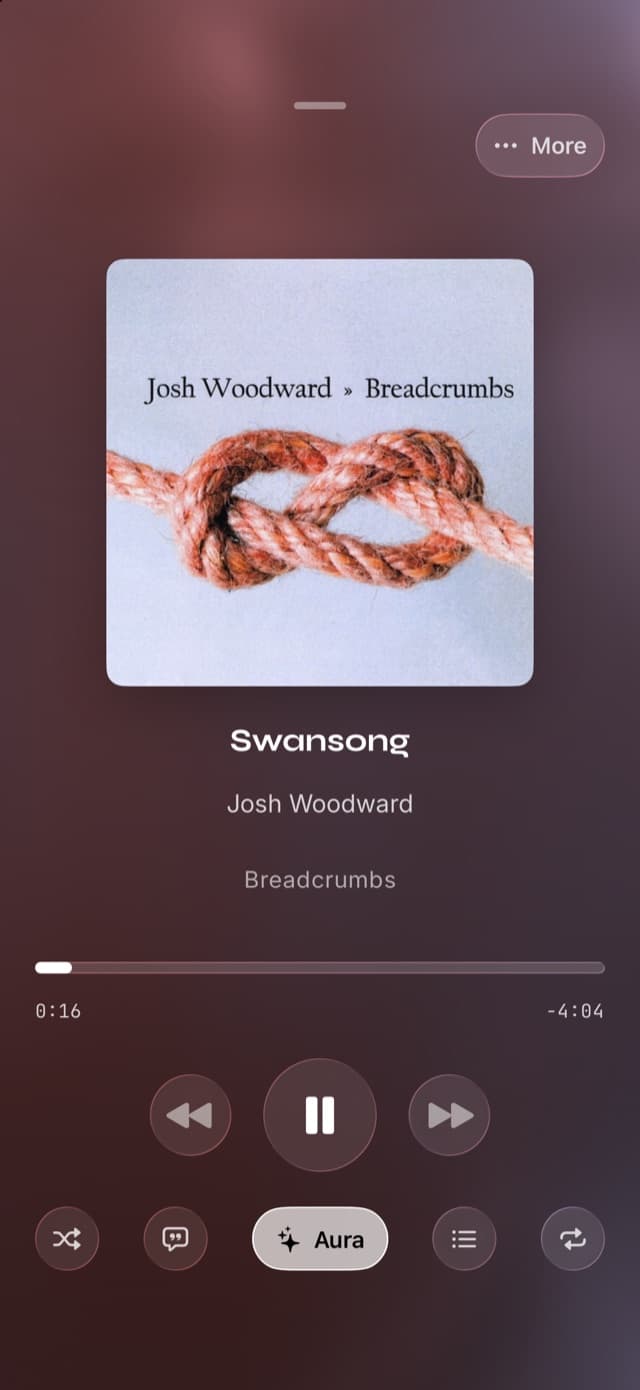
Step 2: Tap the Aura button
In the bottom row of the full player — beside shuffle, lyrics, Up Next, and repeat — there's a capsule labeled Aura. Tap it.
It isn't an on/off switch: tapping it opens the Choose Aura Scene sheet, which is where both the scenes and the switch live.
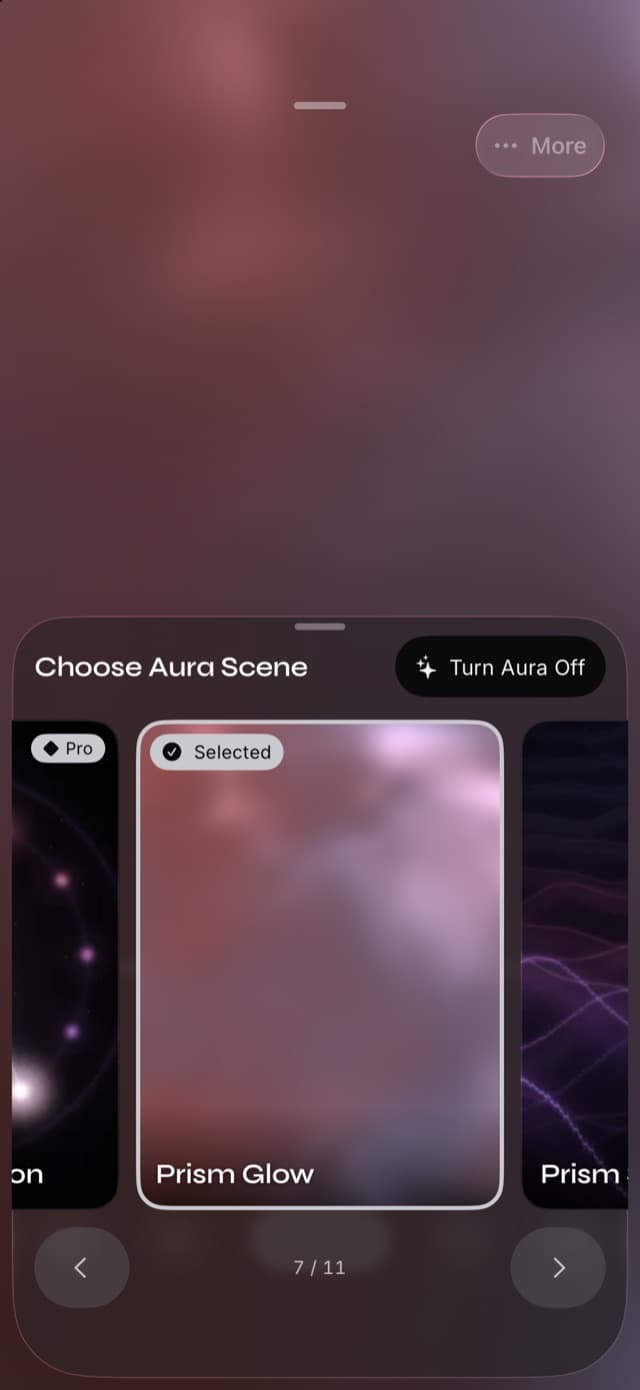
Step 3: Pick a scene — that's what starts it
The sheet is a carousel: swipe through the scenes and each one previews live against the song currently playing, rather than showing a canned thumbnail.
Tap a scene and the visuals start. Choosing one turns Aura on if it was off, so for most people that single tap is the whole job. If you'd rather stop the show, the same sheet has a Turn Aura Off button — and when Aura is already off, that button reads Turn Aura On and starts the scene you last used.
Go full screen from the Visualizers tab
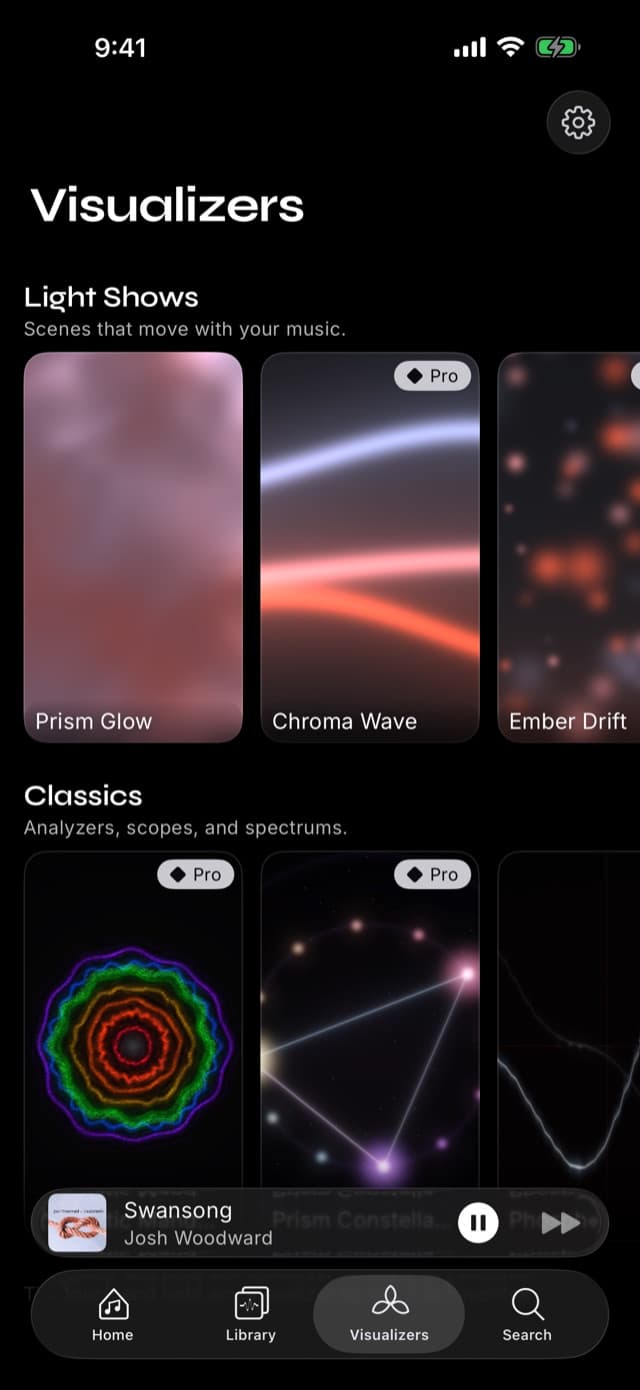
For the full-screen version, tap Visualizers in the tab bar.
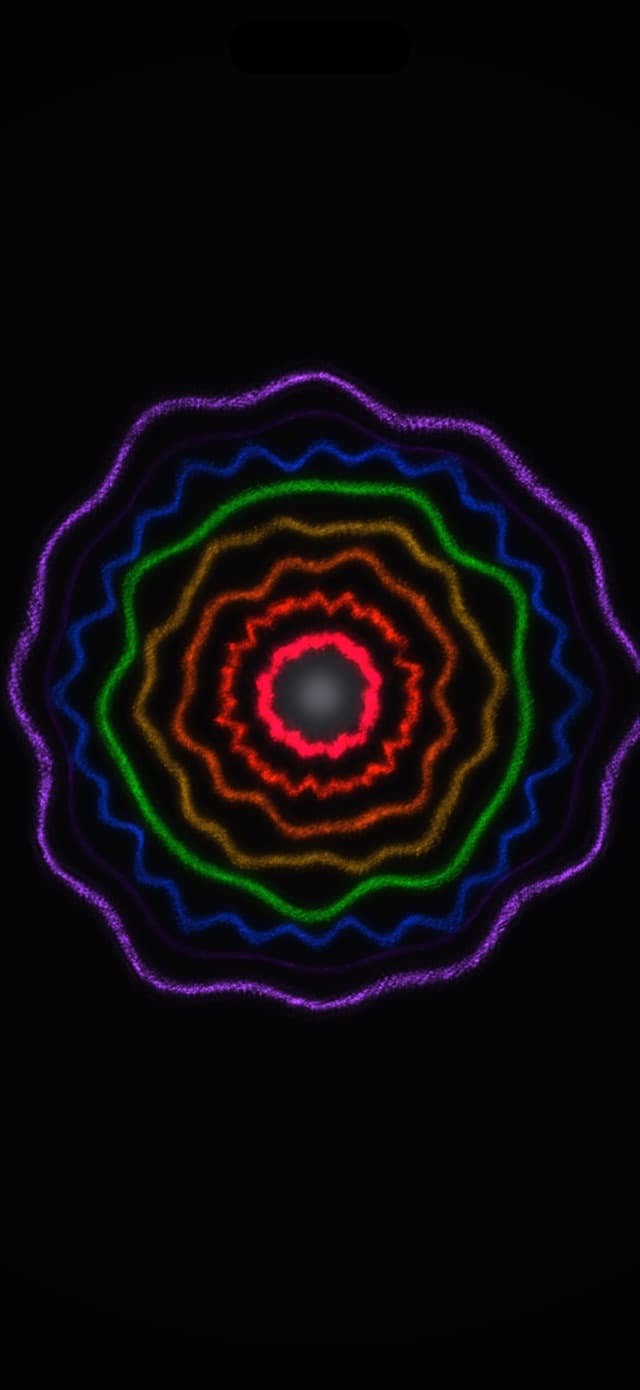
The scenes sit on shelves that describe what they do rather than what they look like. Light Shows — "scenes that move with your music" — are the ambient, generative ones. Classics — "analyzers, scopes, and spectrums" — are the descendants of the visualizers that shipped with desktop players: the spectrum rings, the oscilloscopes, the things that draw the signal itself.
Tap any scene and it fills the screen. Playback carries on; the transport controls are a tap away.
Two things worth knowing here:
- Press and hold a scene to favorite it. Favorites get their own row at the top of the tab, which beats scrolling to the one you always use.
- The tab previews live. That's deliberate, and it's also why the tab respects the power rules below.
The same setting, from Settings
Worth being clear about, because it isn't obvious: the player picker and Settings are two doors onto one preference, not a temporary choice and a permanent one. Pick a scene from the player and it stays picked — for the next song, and after you quit and reopen the app — until you change it again.
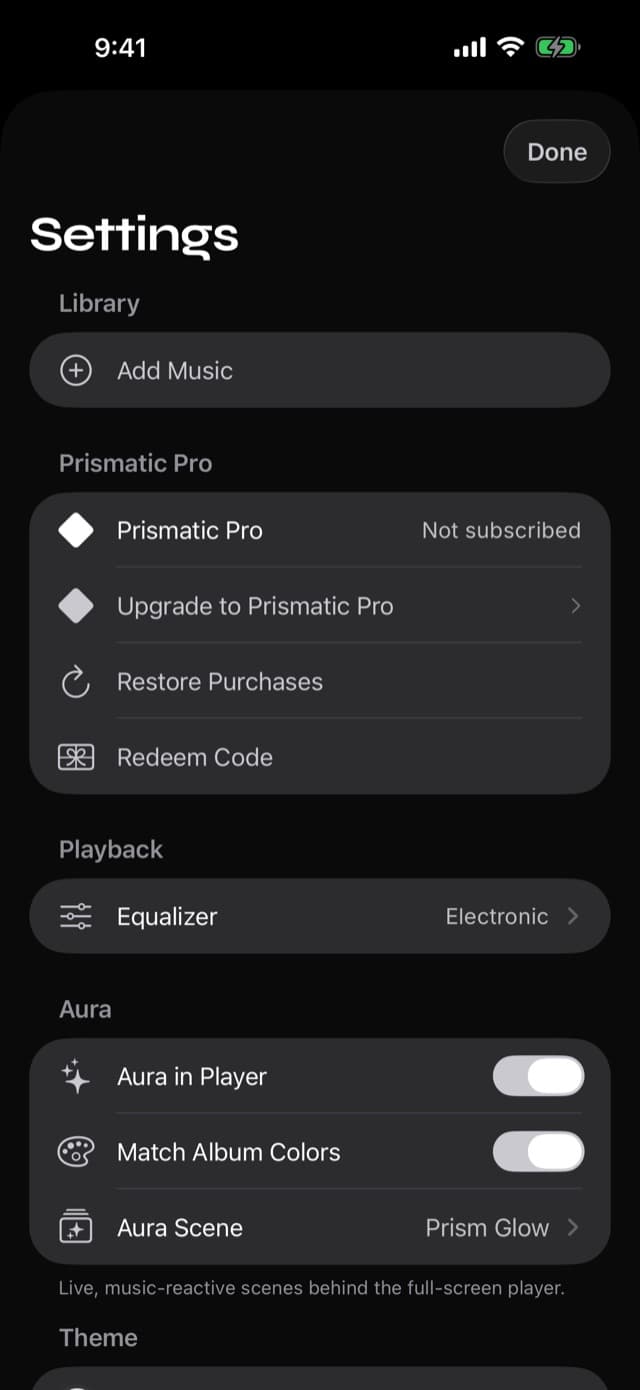
Settings → Aura shows the same thing with its parts labeled:
- Aura in Player — whether visuals run behind the full player at all. This is the same switch as Turn Aura On / Turn Aura Off in the picker.
- Match Album Colors — whether the scene borrows its palette from the current album cover. On, a Blue Note reissue and a hardcore record look distinctly different; off, each scene keeps its own colors.
- Aura Scene — the chosen scene, from the same picker.
What the visuals are actually reading
Worth understanding, because it explains why some songs look better than others — and why the same scene never plays the same way twice.
While a song plays, the audio is analyzed on-device and turned into a handful of continuously-updating signals:
- The frequency spectrum — how much energy sits in each band, from sub-bass to air. This is what drives anything that looks like a ring, a bar, or a wave: it's the shape of the sound at that instant.
- Beat detection — where the transients are, and how confidently. This is what makes a scene pulse on the kick rather than near it.
- Overall energy — how loud and dense the moment is, which scenes use to decide how much to open up. A sparse intro and a full chorus don't get the same treatment.
- The album's colors, if Match Album Colors is on — sampled from the cover art rather than from the audio.
A few practical consequences. Dynamic music looks better than compressed music: a record mastered with room to breathe gives the analysis something to respond to, while a brick-walled loudness-war master flatlines the energy signal. Quiet passages look quiet — that's the analysis being honest, not the scene failing. And a song with a strong beat gets more visible reaction than an ambient drone, which is why the Classics shelf (spectrum-driven) often suits ambient listening better than the beat-reactive Light Shows.
Three ways people actually use this
As a screensaver for a room. Phone on a stand, full-screen scene, an album playing. This is the closest thing to the old desktop visualizer, and it's what the AirPlay-to-TV route below is for.
As ambient depth in the player. Aura on, phone in hand. You still see the artwork and the controls; the background just stops being a flat rectangle.
As something to look at while you listen properly. Sitting with an album rather than using music as background is a different activity, and a visualizer gives your eyes somewhere to go that isn't a feed.
Battery, heat, and Auto-Pause
Rendering real-time graphics costs power. Pretending otherwise would be dishonest, so here's what actually happens.
Scenes are drawn on the GPU, which is the efficient path, and all visual work stops when the app goes to the background — a phone in your pocket is not rendering anything.
Beyond that, Auto-Pause Visuals (Settings → Performance, on by default) pauses Aura and the live previews when the device enters Low Power Mode or starts running hot. The wording in the app is exact about the trade: "Music keeps playing." Visuals are the thing that yields, never playback.
If you're on a long flight with 12% battery, turn Aura off and listen. If you're on a stand at a party with the phone plugged in, leave it running.
Put it on a TV
This one needs Prismatic Pro, and it needs the right kind of connection — worth knowing before you go hunting for the control.
Sending audio to a TV over AirPlay is not enough. That routes the sound and leaves the visuals on the phone. What the visualizer needs is a real external display, which you get from AirPlay Screen Mirroring in Control Center, or from a cable.
Once the TV is connected that way, start the show with Show Visualizer on TV. The app tells you which state you're in rather than leaving you guessing — "Connect a TV with AirPlay Screen Mirroring (Control Center) or a cable, then start the show" before, "Your TV is connected and ready" once it is. While the visuals are running on the TV, the phone's own live previews pause so it isn't rendering two shows at once.
It's the closest thing to the old living-room visualizer that a phone can offer: your own music, your own files, on the big screen, generated live.
Why this doesn't work with streaming apps
If you've searched for a Spotify or Apple Music visualizer on iPhone, you've found apps that mostly disappoint. The reason is structural, not a matter of effort.
iOS doesn't let one app read another app's audio. A visualizer needs the actual waveform — the spectrum, the transients, the energy envelope. Spotify and Apple Music don't hand that to anyone, and iOS provides no system-level tap for it.
So third-party "streaming visualizers" fall back on approximations: animating to a tempo looked up from a song's listing, listening through the microphone (which picks up the room as much as the music), or requiring a desktop setup. None of them is watching the audio.
Prismatic Music plays files you own, which is precisely what lets it analyze the real signal. The visuals aren't guessing at your song — they're drawn from it. That's the whole trade: your own music, honestly visualised, instead of a streaming service with a decorative animation.
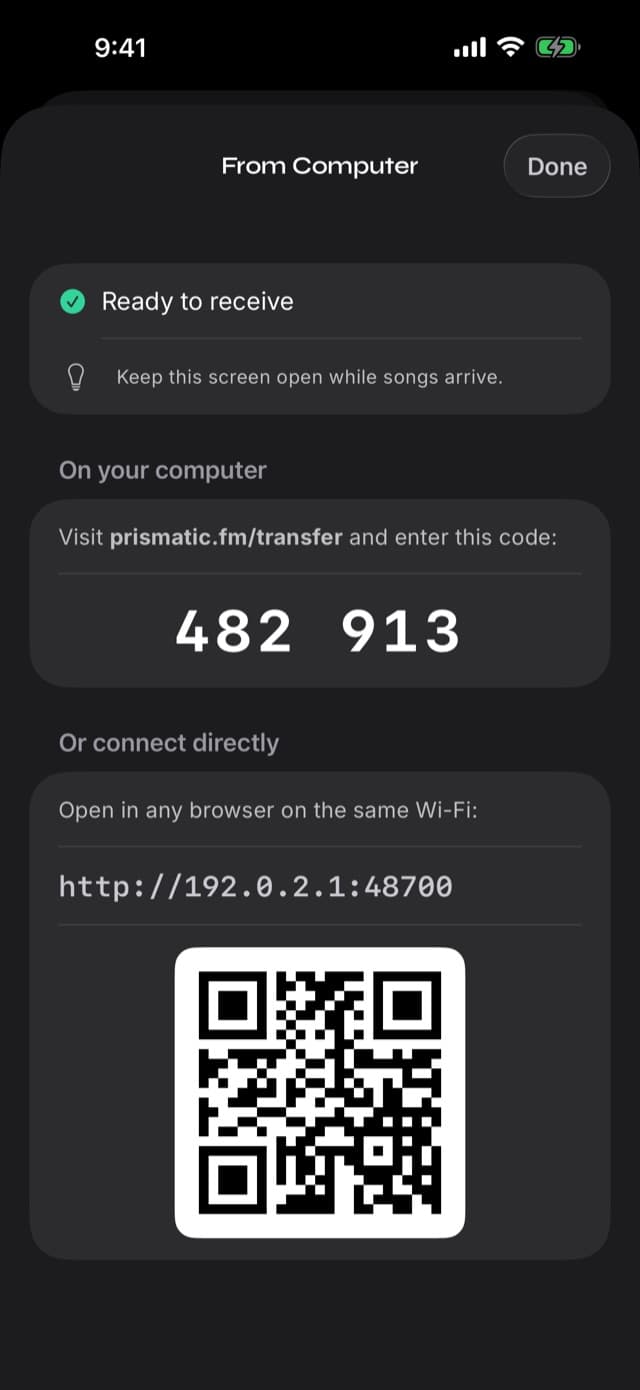
If your music isn't on the phone yet, that's the first step: import it from a computer over Wi-Fi, from the Files app, or from a USB drive.
Free scenes and Pro scenes
Core scenes are free, and playback itself never requires a subscription — your library, playlists, search, and the equalizer are all free.
The full scene collection unlocks with Prismatic Pro, which is $2.99 a month, $19.99 a year, or $49.99 once (US pricing). Scenes that need Pro carry a badge in the picker and in the Visualizers tab, so you always know what you're tapping before you tap it.
Common questions
- How do I turn on the visualizer in Prismatic Music?
- Play a song, open the full player, and tap Aura in the bottom row. That opens Choose Aura Scene; tap a scene and the visuals start behind the artwork. The same sheet has a Turn Aura On / Turn Aura Off button. For a full-screen show, open the Visualizers tab and tap any scene.
- Is there a music visualizer for Spotify or Apple Music on iPhone?
- Not a real one. Streaming apps don't let other apps read their audio, so third-party "Spotify visualizers" either animate to a beat guessed from the song's listed tempo or need a desktop workaround. A visualizer can only react to audio it can actually hear — which is why Prismatic Music does it on music you own.
- Do the visuals really react to the music, or are they just loops?
- They react. The playing audio is analyzed on-device in real time — frequency spectrum, energy, beat detection — and that data drives the rendering frame by frame. Play the same scene against two different songs and you get two visibly different shows.
- Are the visualizers free?
- Core scenes are free and playback never requires a subscription. The full scene collection unlocks with Prismatic Pro ($2.99/month, $19.99/year, or $49.99 once, US pricing). Scenes that need Pro are marked with a badge in the picker.
- Do visualizers drain the battery?
- Rendering costs more power than a static screen, so the scenes are drawn on the GPU and visual work pauses when the app is in the background. Auto-Pause Visuals — on by default, in Settings → Performance — also pauses them in Low Power Mode or when the device gets hot. Music keeps playing either way.
- Can I put the visualizer on a TV?
- Yes, with Prismatic Pro. It needs a real external display — AirPlay Screen Mirroring from Control Center, or a cable — not just an AirPlay audio connection to a speaker or TV. Once the TV is connected, start it with Show Visualizer on TV; the phone's own live previews pause while it runs.
- Can I keep a shortlist of favorite scenes?
- Press and hold any visualizer in the Visualizers tab to add it to Favorites, which then appears as its own row at the top of the tab.
Keep reading
- Music visualizers, explainedHow real-time analysis drives the scenes, and why the visualizer went missing from modern players.
- Music players with visualizers, comparedFrom WinAmp and MilkDrop to what's actually available on iPhone today.
- The 10-band equalizerThe other thing modern players quietly dropped.