How to Play MP3 Files on iPhone: Every Way That Actually Works in 2026
Four ways to play MP3 files on iPhone — the Files app, Apple Music sync, cloud drives, and a dedicated local player — with honest steps for each. No iTunes required.
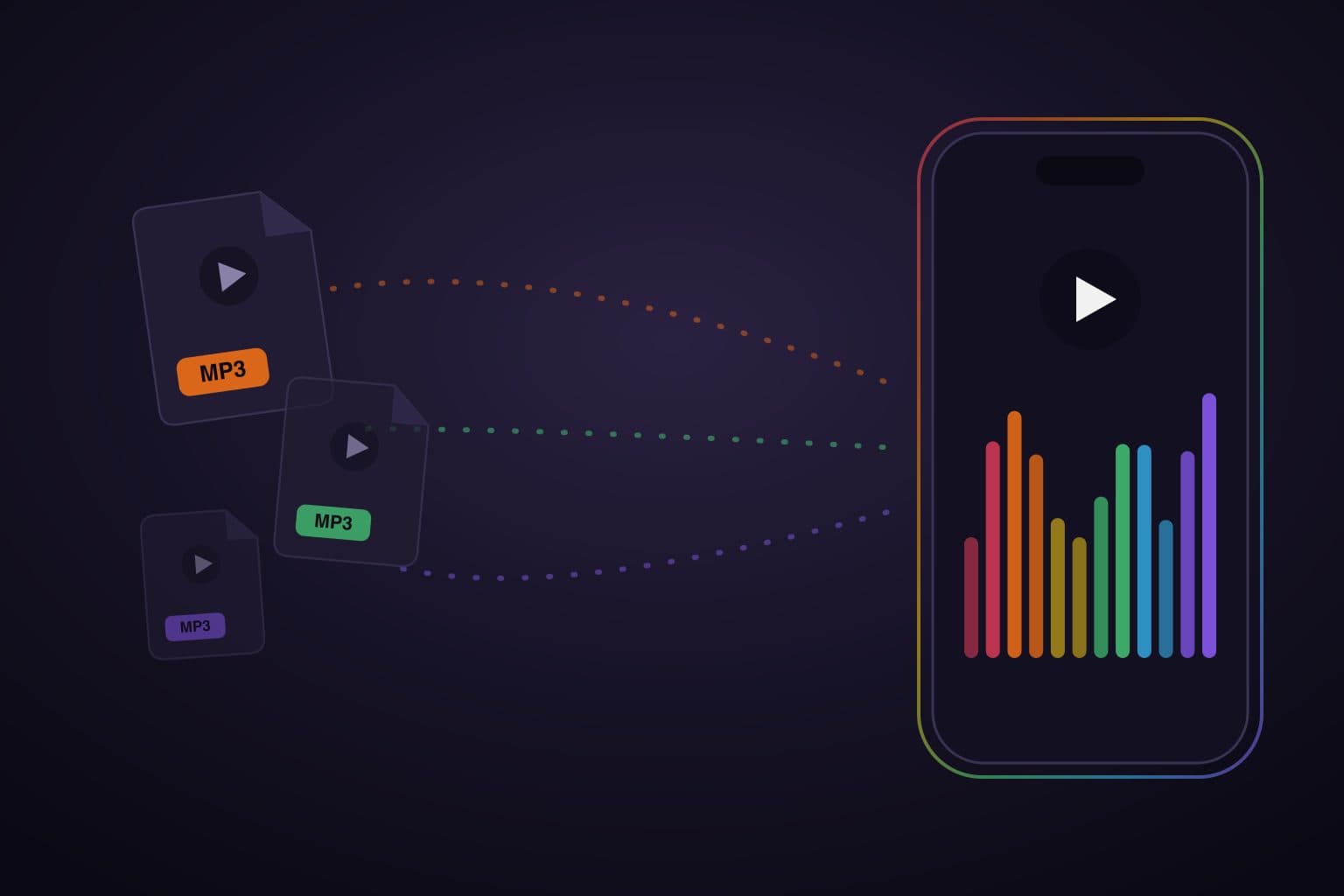
Playing an MP3 on an iPhone should be trivial — and the good news is that in 2026 it finally is, once you know which of the four routes fits what you're doing. The quick version: for a one-off file, tap it in the Files app; for a real music library, import your files into a free local player app — we'll walk that route step by step in Prismatic Music. In between sit two routes you'll see recommended all over the internet — computer sync and cloud drives — that work, with caveats worth knowing before you spend an evening on them.
No route here requires iTunes. iTunes is gone: Macs replaced it with the Music app and Finder sync years ago, and Apple retired it on Windows in favor of the Apple Music and Apple Devices apps. If a guide starts with "open iTunes," it's older than it admits.
Get Prismatic Music free
The local-player route, on iPhone and iPad. Import MP3s from Files or your Apple Music library — no computer, no account.
First, the good news: your iPhone already plays MP3s
The iPhone has supported MP3 natively since it was an iPod with a phone attached. Nothing needs converting, and nothing needs a subscription. The actual problems people hit are the two Apple never solved in the built-in apps:
- Getting the files onto the phone without a cable ritual.
- Playing them like music — as an organized, searchable library with playlists and a queue — instead of as loose documents.
Each route below solves those two problems to a different degree. That's the honest way to choose between them.
Route 1: the Files app (quickest, but barely a player)
If you just need to hear an MP3 right now, this is the move — no setup, no extra apps:
- Get the file into Files: AirDrop it from a computer (choose Save to Files when it arrives), download it in Safari (it lands in Downloads), or save an email attachment via the share sheet.
- Tap it. A mini player opens with play/pause and a scrubber.
That's genuinely it — for one file. The limits show up immediately: the Files player handles one file at a time, with no library, no playlists, no queue that survives, no equalizer, and no memory of what you were listening to. It treats your music as documents, because to Files, that's what they are.
Verdict: perfect for auditioning a download or checking a file someone sent you. Not a way to listen to an album, let alone a collection.
Route 2: Apple Music sync from a computer (works, but clunky)
The traditional answer, modernized: put your MP3s into Apple's Music ecosystem on a computer, then get them to the phone.
- On a Mac, open the Music app and drag your MP3s in (or File → Import). On Windows, use the Apple Music app.
- Connect your iPhone and sync: on a Mac via Finder (select the iPhone in the sidebar → Music tab), on Windows via the Apple Devices app.
- Alternatively, if you pay for Apple Music or iTunes Match, turn on Sync Library and your local files upload to Apple's cloud and appear on the phone without a cable.
When it works, the result is real: your MP3s sit in the built-in Music app with playlists and CarPlay. But this route has sharp edges, and they're the source of half the "why won't my MP3 show up" threads on the internet:
- You need a computer, every time. The Music app on iPhone has no way to import a file on-device. None.
- Sync Library and cable sync are mutually exclusive. With Sync Library on, the Finder sync page for music is disabled — files you drag into Music on the computer won't cable-sync until you flip it off (or go all-in on the cloud-library subscription route).
- No FLAC, ever. If your collection is part MP3 and part lossless, Apple's Music app plays the MP3s and shrugs at the FLACs.
Verdict: reasonable if your library already lives in the Music app on a computer and you sync on a schedule. Tedious if you just have folders of MP3s and no appetite for sync semantics.
MP3s and Apple Music are different things
An MP3 you own is a file; an Apple Music download is a DRM-protected rental that only plays inside Apple's app while you subscribe. No third-party player — Prismatic Music included — can import or play protected Apple Music (or Spotify) downloads; that's a platform rule, not an app limitation. Everything in this guide is about DRM-free files you own: purchases, rips, Bandcamp orders, downloads. Those are yours to play anywhere, forever.
Route 3: cloud drives (Dropbox, Google Drive, iCloud)
The lazy-transfer route: drop your MP3s into a cloud folder on your computer, open the drive's app on your iPhone, tap a file, and it streams.
It's a fine transfer mechanism — no cable, works from any computer — and a mediocre listening mechanism. The in-app audio players are as bare as the Files app's (one file at a time, no real queue), playback needs an internet connection unless you've marked files for offline (a feature some services reserve for paid plans), and long-term you're renting storage to hold files your phone could hold locally.
The smarter use of this route is as a pipeline: use the cloud app (or Files, which can browse most cloud drives directly) to get the MP3s onto the phone, then hand them to a real player — which brings us to the route that actually scales.
Verdict: great for moving files; use it to feed Route 4 rather than as the place you listen.
Route 4: a dedicated MP3 player app (the route that scales)
This is the vendor-neutral truth of this whole topic: once you have more than a handful of MP3s, you want an app whose entire job is playing files you own. A good local player imports from anywhere, organizes everything into a library, and plays offline forever — no computer, no sync rules, no subscription. We build one, so here's exactly how that route looks in Prismatic Music, which is free, works without an account, and imports on-device with nothing uploaded anywhere.
Here's the whole walkthrough:
- Get the MP3s onto your iPhone — AirDrop from a computer, a cloud-drive folder, email attachments, Safari downloads. Anywhere the Files app can see is fine — and if the files are still on your computer, you can skip this step entirely (see step 2).
- Open Prismatic Music → Home → Add Music. One screen lists every way in: your Apple Music library (the DRM-free songs you own), Files & Cloud Storage, and From Computer — which turns the sync problem from Route 2 into drag-and-drop in a browser over Wi-Fi, no cable and no iTunes. It can even copy a whole library across from another phone.
- Tap Files & Cloud Storage and pick your music. Select loose files or a whole folder — a folder imports everything inside it. You can also skip the app entirely and share an MP3 to Prismatic Music from Mail, AirDrop, or any cloud app's share sheet.
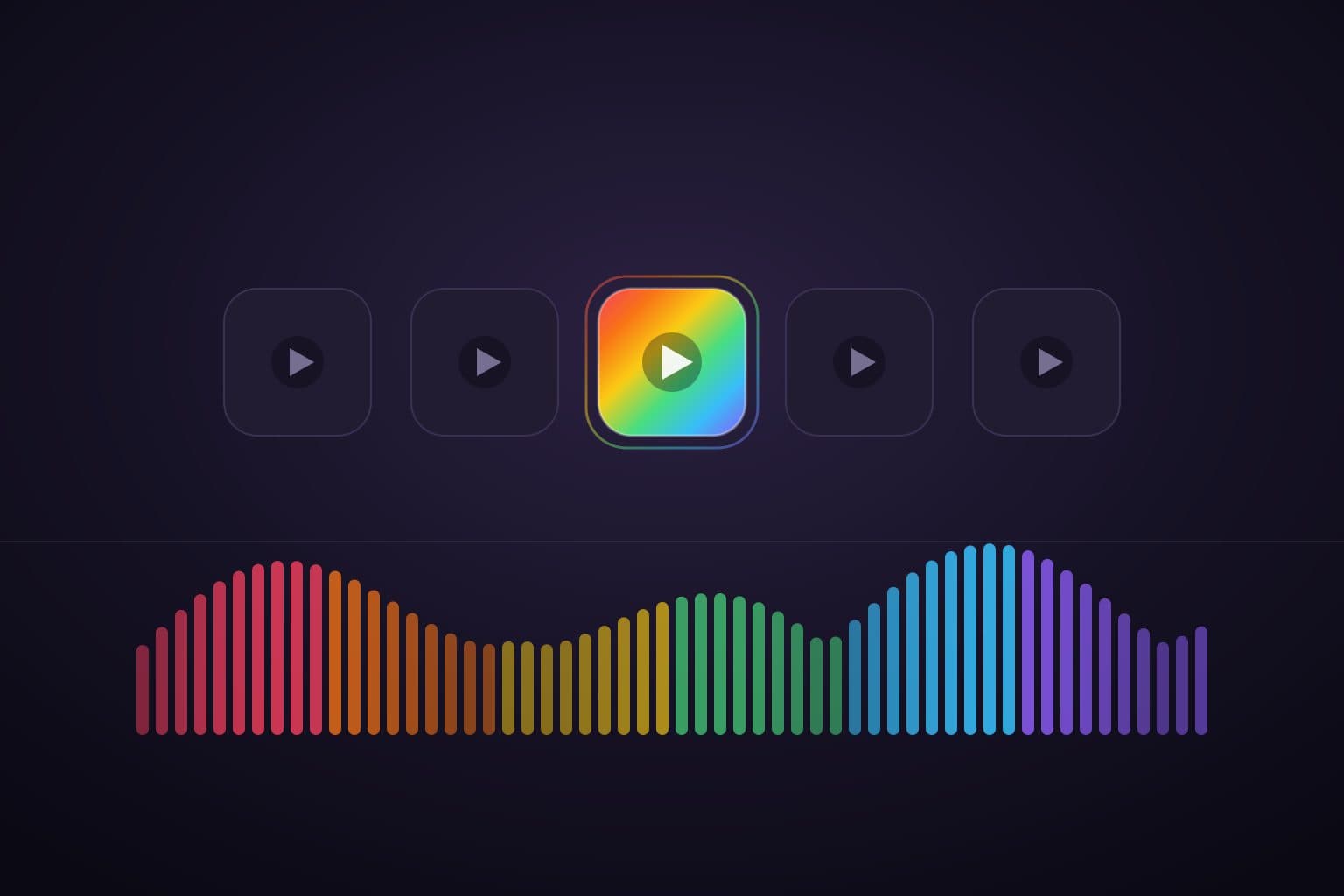
- Done — press play. Imports land in one searchable library, organized by artist and album with their metadata and artwork. From there you get what the built-in routes never offer: playlists, a proper play queue, a 10-band equalizer, synced lyrics, and — the part that's genuinely ours — real-time visualizers that render live from whatever's playing.
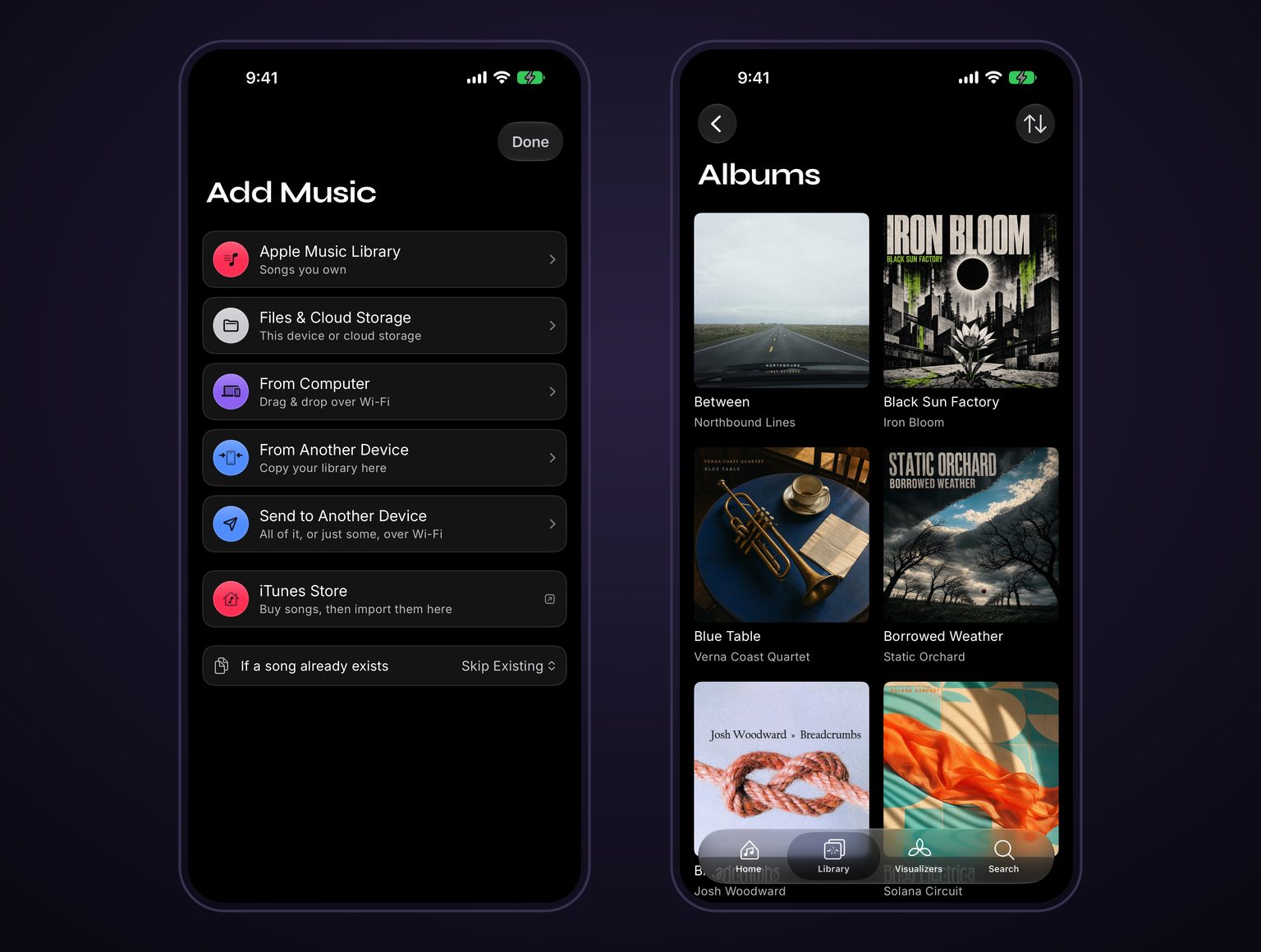
Two more things worth knowing. Import is on-device and private — no cloud matching, no account, your files stay yours. And MP3 is just the start: the same library plays FLAC, ALAC, WAV, AIFF, and AAC natively. For FLAC import, format comparisons, and what lossless means over Bluetooth, read our FLAC player for iPhone guide. The full details of every import path are on the import guide.
Verdict: the only route where a thousand-file collection is as easy as one file. If you'd rather comparison-shop first, we wrote an honest roundup of the best offline music players for iPhone — including the apps we compete with.
Which route should you use?
| Route | Needs a computer? | Real library (playlists, queue, EQ)? | Works offline? | Best for |
|---|---|---|---|---|
| Files app | No | No — one file at a time | Yes | Hearing a file right now |
| Apple Music sync | Yes, every time | Yes, in the Music app | Yes | Libraries already organized on a computer |
| Cloud drive app | No | No — bare in-app player | Only with offline marks | Moving files; occasional access to a remote stash |
| Local player app | No | Yes | Yes | An actual MP3 collection |
The pattern is simple: Apple's built-in options treat MP3s as either documents (Files) or a chore (sync). The moment your MP3s are your music collection rather than the odd file, put them in a player built for exactly that — and if it makes your library fun to look at while it plays, so much the better.
Put your MP3s somewhere they belong
Free on iPhone and iPad. Playlists, search, a 10-band EQ, and live visualizers.
Quick answers
Frequently asked questions
- Can iPhone play MP3 files without iTunes?
- Yes — and you haven't needed iTunes for years. iTunes no longer exists on the Mac, and Apple retired it on Windows too. On the iPhone itself, the Files app plays any MP3 with a tap, and a free local player app like Prismatic Music turns a folder of MP3s into a real library with playlists, queue, and search. The only route that still involves a computer is syncing files into Apple's Music app, and even that now happens through Finder on a Mac or the Apple Music and Apple Devices apps on Windows.
- Where do MP3 files go on an iPhone?
- Files you download in Safari land in the Downloads folder of the Files app (in iCloud Drive or On My iPhone, depending on your Safari settings). Email attachments and AirDropped files go wherever you choose to save them in Files. When you import MP3s into a player app, the app keeps its own copy in its storage, so your library keeps working even if you later delete or move the originals in Files.
- Why won't my MP3 show up in the Apple Music app?
- Two usual reasons. First, the Music app on iPhone has no import feature at all — you cannot add an MP3 to it from the phone itself; files only get in by syncing from a computer or through a cloud-library subscription (Apple Music or iTunes Match). Second, if Sync Library is turned on, cable syncing of music from a computer is disabled, so files you drag in on the computer never make the trip. A local player app avoids all of this by importing MP3s directly on the phone.
- I AirDropped an MP3 from my Mac to my iPhone — now what?
- When the file arrives, your iPhone asks what to do with it: save it to Files, or open it in an app that accepts audio. Saving to Files (Downloads is fine) is the flexible choice — from there you can tap it for a quick listen, or import it into a music player. If you already have Prismatic Music installed, you can also hand the file straight to it from the AirDrop prompt or the share sheet, and it joins your library immediately.
- What is the best MP3 player app for iPhone?
- For most people, Prismatic Music: it's free, needs no account, imports MP3s from the Files app, the share sheet, your Apple Music library (the DRM-free songs), or straight from a computer over Wi-Fi, and adds the things the built-in routes never give you — playlists, a play queue, a 10-band equalizer, synced lyrics, and real-time visualizers. It also plays FLAC, ALAC, WAV, AIFF, and AAC alongside your MP3s. If you want to compare alternatives honestly, we maintain a full comparison of the best offline music players for iPhone.
- Do I need the internet to play MP3 files on iPhone?
- No. MP3s stored on the device — in the Files app or imported into a local player — play fully offline, in Airplane Mode, on flights, and anywhere else. The only route that needs a connection is streaming files straight out of a cloud-drive app like Dropbox or Google Drive.