How to Play Music from the Files App on iPhone
Short answer
- The Files app can preview an audio file, but it isn't a music player — no library, no playlists, no queue.
- In Prismatic Music, tap Add Music → Files & Cloud Storage → Browse Files, then pick a folder rather than individual songs.
- Download cloud files first. A file showing a cloud icon in iCloud Drive or Dropbox is a placeholder, and placeholders can't be imported.
- Imported songs are copied onto the device, so they play with no signal and no cloud account.
- Takes about
- 5 minutes
- You'll need
- An iPhone or iPad with Prismatic Music · Audio files in the Files app, iCloud Drive, or a cloud-drive app
On this page
Turn your files into a music library
Get Prismatic Music for iPhone and iPad, then import the songs you own from Files.
The Files app was a genuine improvement to iOS. It gave the system a filesystem people could see, a place to put documents, and a way for apps to share them. What it didn't give iOS was a way to listen to the music you put in it.
That's the gap this guide closes. If your collection is sitting in On My iPhone, iCloud Drive, Dropbox, or a folder someone AirDropped you, the files are already in the right place — they just need to become a library.
What the Files app can and can't do with music
It can preview a file. Tap an MP3 in the Files app and it plays, with a scrubber and a play button. That's a document preview.
It can't be a music player. There's no library view, no artists or albums, no playlists, no queue, no shuffle, no repeat, no equalizer, no Now Playing integration, no widgets. Tap the next file and the previous one stops. Fine for checking a file; useless for an evening of listening.
Apple's Music app won't touch the folder. The built-in Music app plays its own library and your Apple Music subscription. There is no route from a folder in the Files app into it.
Third-party players can import from it, and that's the answer. Prismatic Music reads the same locations the Files app does — because it uses the same system file picker — and copies what you select into a real library on the device.
The cloud placeholder problem
This one deserves its own section because it's responsible for more failed imports than everything else combined.
A file in iCloud Drive — or Dropbox, or Google Drive — isn't necessarily on your phone. iOS keeps a placeholder and downloads the real file when something asks for it. In the Files app, a placeholder shows a small cloud icon next to its name.
Placeholders can't be imported. There's nothing to copy yet. Prismatic tells you exactly this when it happens — "Download it in Files (or Finder), then try again" — but it's much less annoying to get ahead of it:
- Open the Files app.
- Navigate to the folder with your music.
- Tap the cloud icon on a file, or use the folder's Download action, and wait for the icons to disappear.
- Then import.
This is also why "my music won't play on the plane" is such a common complaint about cloud-drive listening in general — and why importing, which puts a real copy on the device, is a categorically different thing from browsing a cloud folder.
Optimize iPhone Storage can undo this. If iOS is low on space it may evict downloaded iCloud Drive files back to placeholders. It never does that to music you've imported into a library — imported songs are app data, not evictable cloud cache. One more reason to import rather than play in place.
Import from the Files app
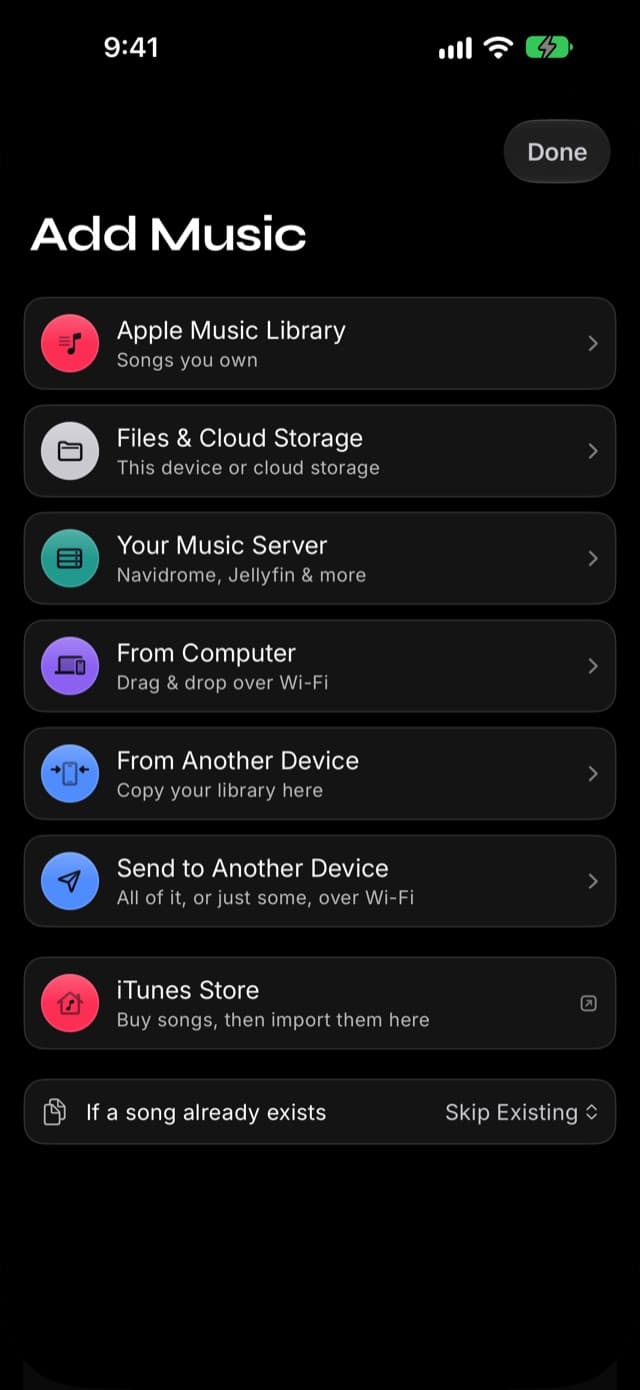
Step 1: Open Add Music, then Files & Cloud Storage
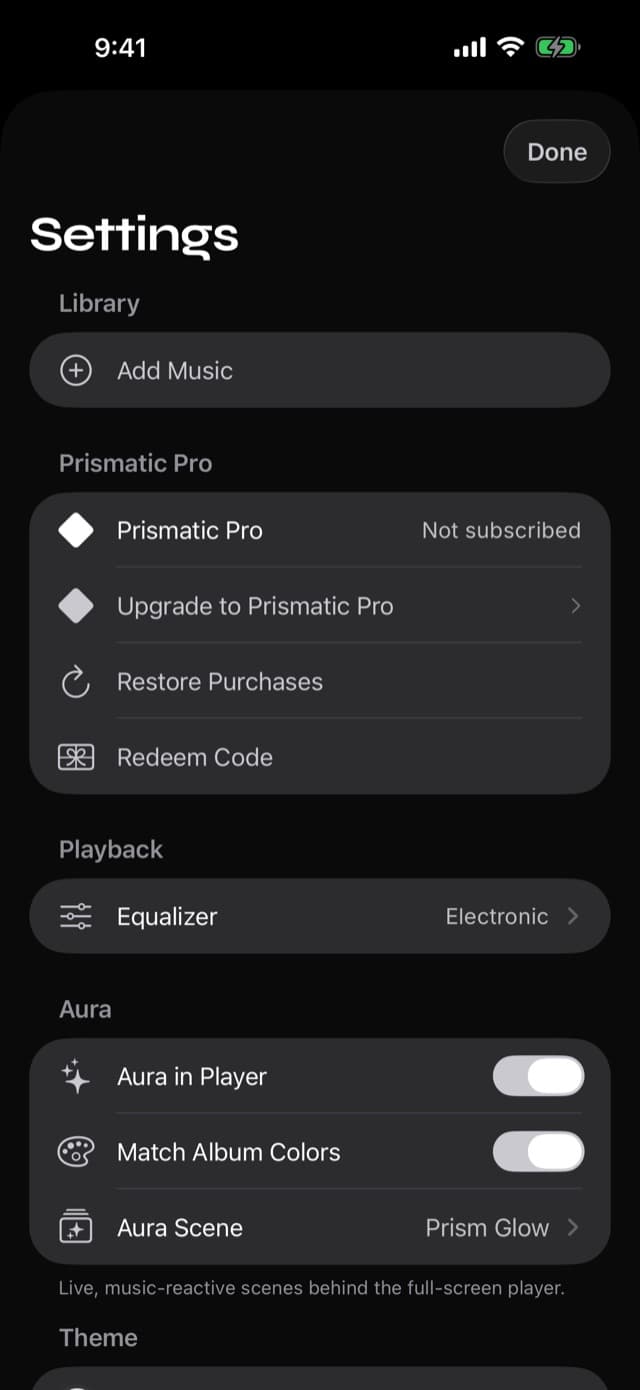
In Prismatic Music, tap Add Music on the Home tab. Files & Cloud Storage is the second row — "This device or cloud storage".
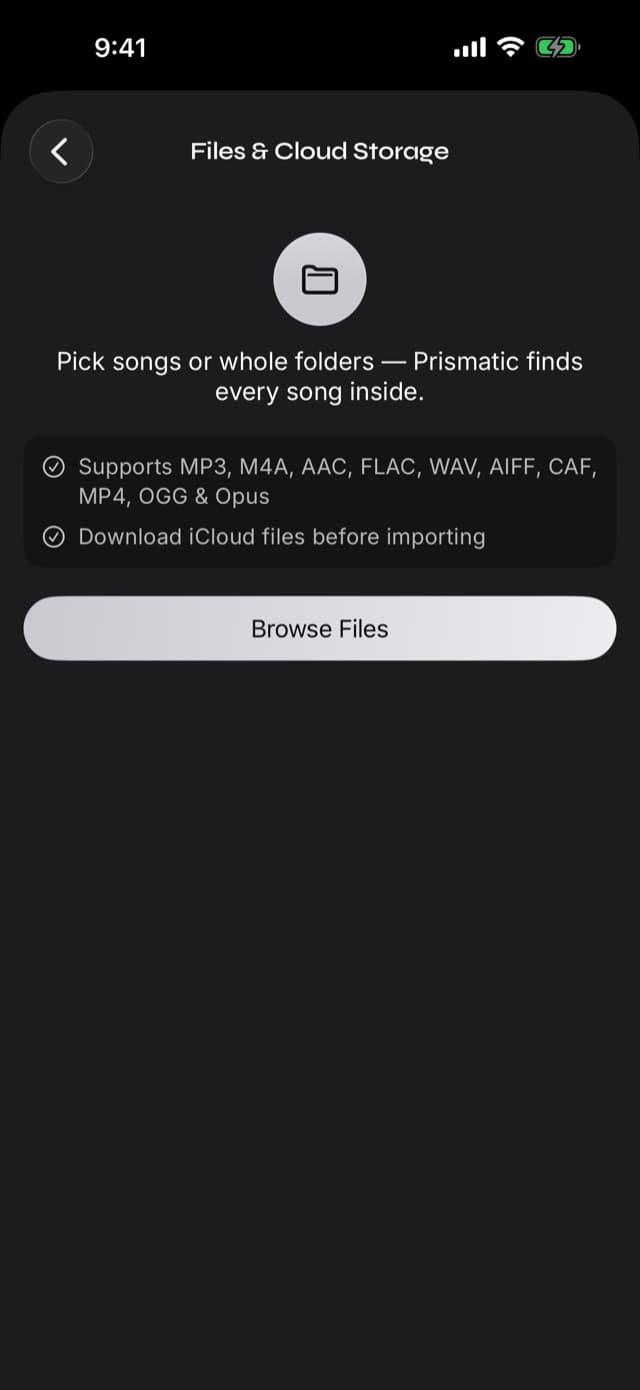
Step 2: Read the two caveats, then tap Browse Files
The detail page lists exactly what it accepts — MP3, M4A, AAC, FLAC, WAV, AIFF, CAF, MP4, OGG, and Opus — and repeats the placeholder rule: download iCloud files before importing.
Step 3: Pick your music in the system file picker
The standard iOS picker opens. Everything the Files app can see is here: On My iPhone, iCloud Drive, any cloud-drive app you've enabled, any external drive that's plugged in, and any network share you've connected in the Files app (Browse → ⋯ → Connect to Server) — which is the route to an SMB folder on a NAS.
Navigate to your music and select it. You can multi-select files — or, better, select the folder.
Step 4: Let it import
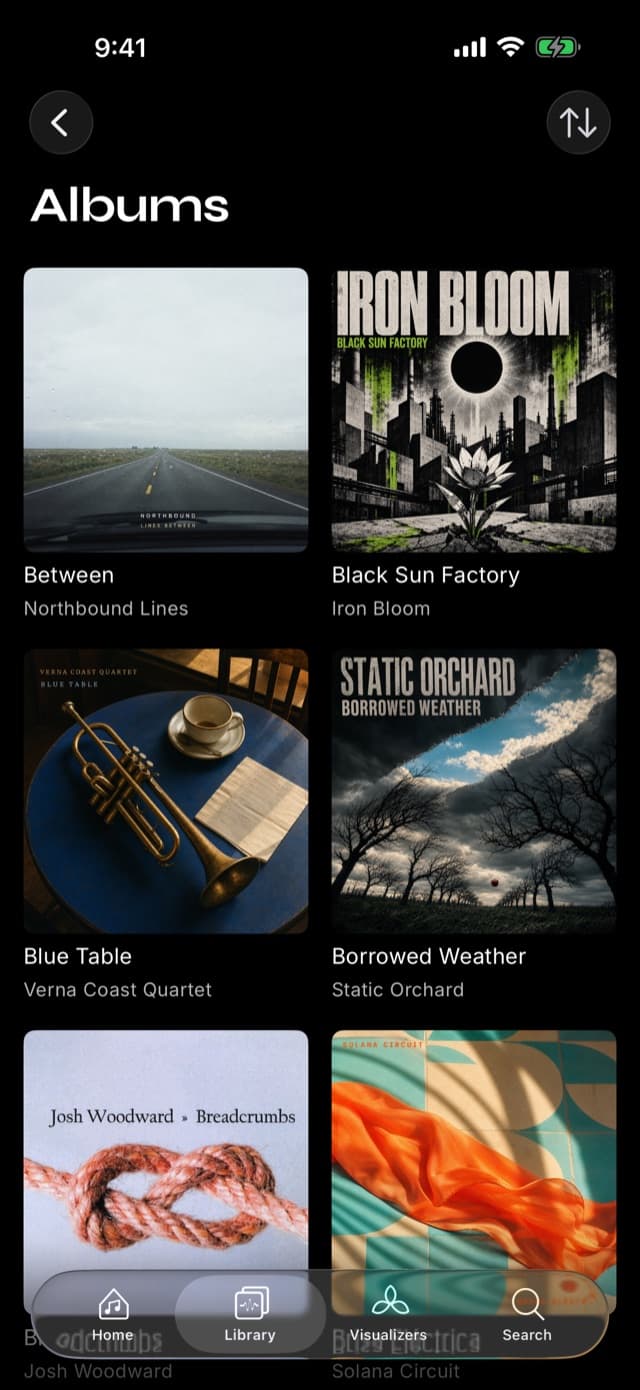
Files are copied into your library one at a time. Tags are read, cover art is pulled out of the files, and everything is organized into artists and albums — and made searchable, right down to the song title.
Keep the app in the foreground while a large import runs.
Folders beat files
If you remember one thing from this guide, make it this: select the folder, not the songs.
Prismatic walks the entire tree beneath whatever you select, subfolders
included, and imports every supported audio file it finds. A typical
collection is organized as Music/Artist/Album/01 Track.mp3, which means the
whole thing is one selection.
Selecting individual files is worth doing in exactly one case: when a folder contains a mixture of things you want and things you don't — a podcast archive in the same directory as an album, say.
It also means you can re-select the same folder later to pick up what you've added since. The duplicates setting on the Add Music screen defaults to Skip Existing, so a re-import costs you nothing but the time to scan.
Tags matter more than folders
This surprises people who've spent years curating a folder tree: once music is imported, the folder structure stops mattering. The library is built from each file's embedded tags — title, artist, album, track number, album artist, year — not from the path it came from.
That's usually a relief (a mess of a folder tree still lands as a tidy library), but it has two consequences worth knowing before you import a large collection.
Untagged files land untagged. A file called track01.mp3 with
no tags shows up as track01, with no artist and no album. Prismatic fills
gaps where it can, but it can't invent a title that was never written into the
file. If a folder of rips is untagged, tagging it on a computer first — with
Picard, Mp3tag, or whatever you already use — is ten minutes that saves a lot
of scrolling later.
Compilations need an album artist. A soundtrack or a DJ compilation where every song has a different artist will fragment into twenty one-song "albums" unless the files carry an album artist tag holding them together. This is the single most common cause of "why is my library full of albums with one song in them", and it's a tag problem rather than an import problem.
Embedded artwork comes across with the file. Albums that arrive without covers can be filled in afterwards with Settings → Library Management → Find Missing Artwork.
The share-sheet shortcut
For one or two songs, importing through Add Music is more ceremony than the job deserves. Prismatic Music registers itself as a handler for audio files, so it shows up wherever iOS offers to open one:
- In the Files app — long-press a file → Share → Prismatic.
- In Mail — tap an audio attachment → Share → Prismatic.
- From AirDrop — accept the file and choose Prismatic to open it.
- From Safari — download the file, then share it across from Files.
- From any cloud-drive app — Dropbox, Drive, and OneDrive all offer a share sheet on a file.
The song lands in your library the same way it would through the importer.
If your NAS runs a music server, don't come through here. Navidrome, Jellyfin, Emby, and other Subsonic-compatible servers have their own route in Prismatic Music: sign in once, browse by album or playlist, and copy what you pick straight across. It's faster than walking a folder tree in the Files app and it remembers what you've already imported. See importing from your own music server. The Files-app route above is still the answer for a plain SMB or WebDAV share with no server in front of it.
What about storage?
Importing copies the audio, so the songs occupy space on the device. That is what makes them play offline — but it means you can end up holding two copies if the originals stay in the Files app.
The tidy sequence is:
- Import the folder into Prismatic Music.
- Play a few songs from different albums, to confirm the files themselves came across.
- Delete the originals from the Files app.
If space is genuinely tight, check the format: a lossless album runs around 300 MB against roughly 90 MB for a 320 kbps MP3. Prismatic plays both natively, so keeping lossless masters somewhere else and importing lossy copies for the phone is a perfectly reasonable arrangement.
When a file refuses to import
The app tells you why, and each message has a specific fix.
| What it says | What's happening | Fix |
|---|---|---|
| Download it in Files (or Finder), then try again | The file is a cloud placeholder | Download it in the Files app first |
| This song is copy-protected and can't be imported | It's an Apple Music streaming download, or another copy-protected file | No third-party app can play these — see below |
| Make sure the file is a supported audio format | The extension is audio-ish but the format isn't one we play | Convert it on a computer (.wma and .ape are the usual suspects) |
| Free up storage, then try again | The device is out of space | Delete something, then re-run the import |
| Choose the file again in Files, then try again | The permission to read that location expired | Re-select it in the picker |
The copy-protection one is worth stating plainly, because it's the single biggest source of confusion about local music on iPhone: songs downloaded from the Apple Music streaming service are copy-protected, and Apple does not permit any third-party app to play them. That includes ours. What imports is music you own — iTunes Store purchases, ripped CDs, Bandcamp and Qobuz downloads, promos, your own recordings. It is a platform rule, not a missing feature, and any app claiming otherwise is describing something it can't do.
If your files are on a computer rather than in the Files app, the Wi-Fi route skips this whole dance: transfer music from a computer without iTunes. And if songs import but then refuse to play, that's a different problem with its own guide: fixing music that won't play offline.
Common questions
- Can the Files app play music on iPhone?
- It can preview an individual audio file, the way a desktop plays a file you double-click. What it can't do is act as a music player: there's no library, no album or artist browsing, no playlists, no queue, and no shuffle. For that you need a player that imports the files, which is what Prismatic Music does.
- Why won't my iCloud Drive songs import?
- Because they aren't on the device yet. A file with a cloud icon beside it in the Files app is a placeholder that lives in iCloud; iOS downloads it on demand. Tap the file or folder in the Files app to download it, wait for the cloud icons to vanish, then import.
- Can I import from Dropbox, Google Drive, or OneDrive?
- Yes, as long as that service's app is installed and switched on in the Files app. It appears as a location in the file picker like any other. The same download-first rule applies: cloud-only files must be downloaded before they can be imported.
- Which audio formats can I import?
- MP3, M4A, AAC, FLAC, WAV, AIFF, CAF, MP4, OGG, and Opus. Files import and play natively, with no conversion step — so a FLAC stays lossless.
- Can I send a song to Prismatic Music from another app?
- Yes. Prismatic Music registers as a handler for audio files, so it appears in the share sheet and in Open In menus — from Mail, Safari, AirDrop, a messaging app, or a cloud-drive app. That's the fastest way to add one or two songs.
- Does importing duplicate my files and use twice the space?
- Importing copies the audio into the app's own storage, so yes — if the original also stays in the Files app, you have two copies. Once an import has finished you can delete the originals from the Files app; the library copy is what plays.
- Will the songs still play with no internet connection?
- Yes. That's the point of importing rather than streaming from a cloud drive. Once a song is in the library it lives on the device and plays in Airplane Mode.
Keep reading
- Every way to import music into Prismatic MusicFiles, Apple Music library, computer over Wi-Fi, and device-to-device.
- How to play MP3 files on iPhoneThe four routes MP3s can take onto an iPhone, compared honestly.
- The offline music player, explainedWhy a library you own behaves differently from a streaming download.