How to Transfer Your Music Library to a New iPhone
Short answer
- On the new device: Add Music → From Another Device → Start Receiving. It shows a QR code.
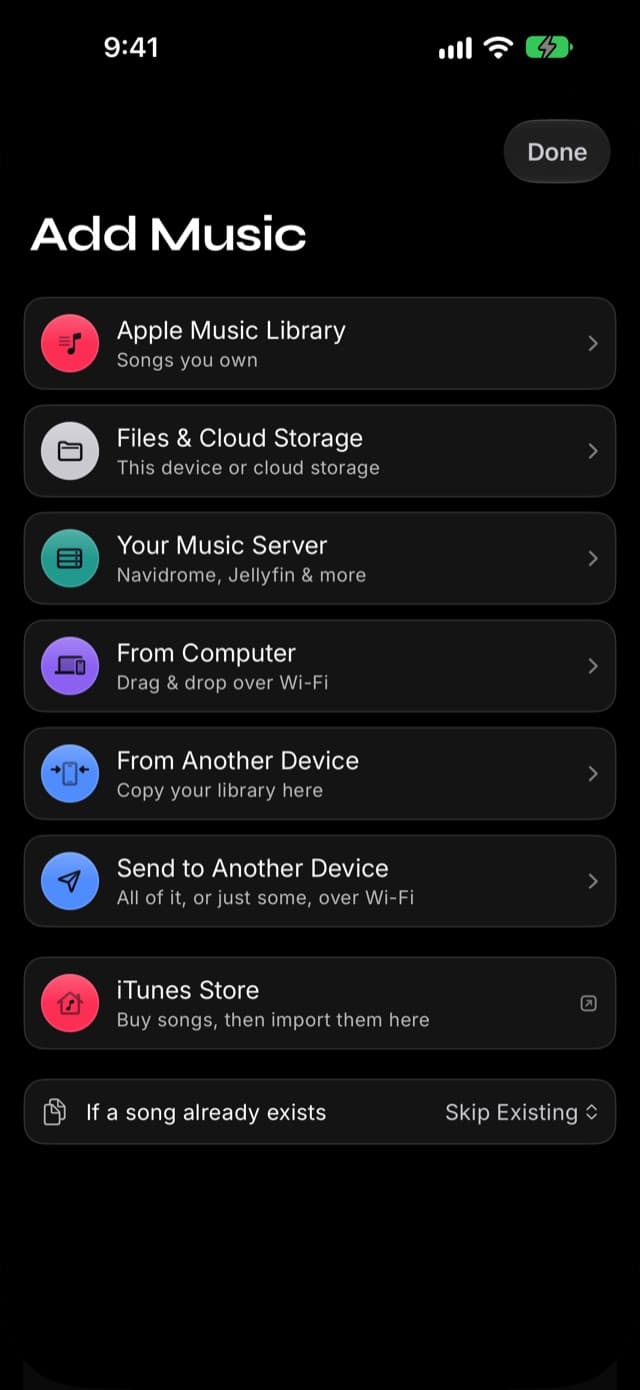
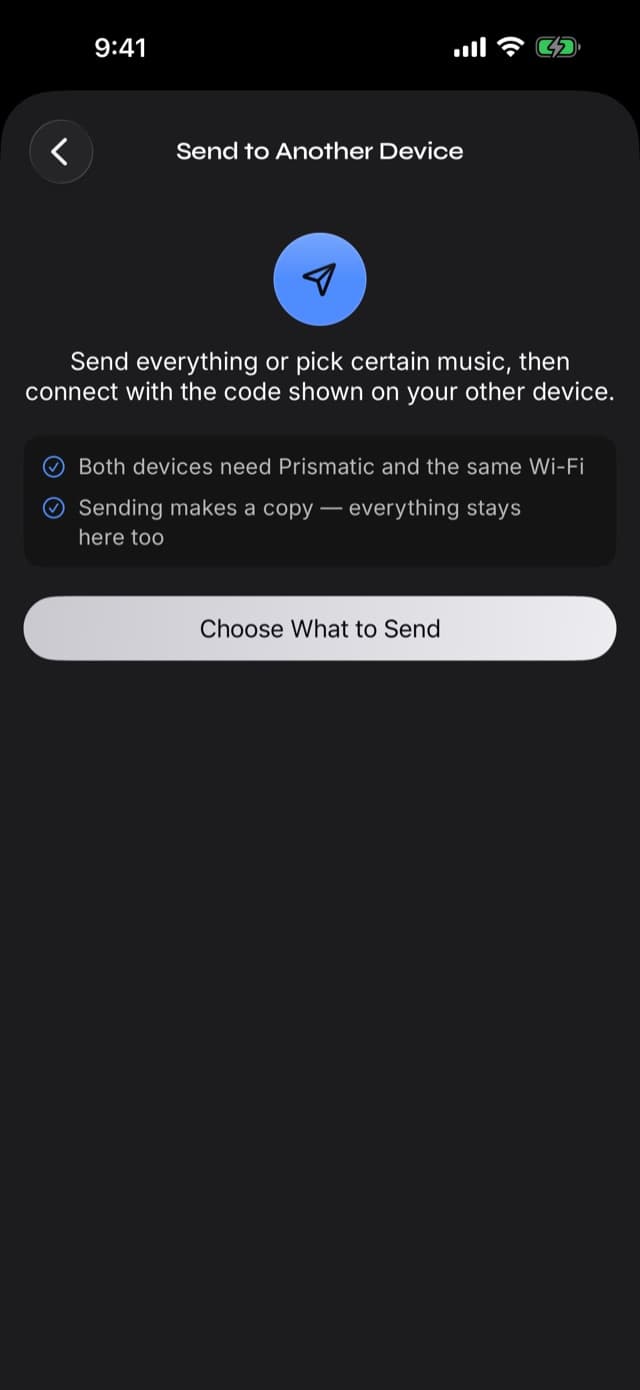
- On the old device: Add Music → Send to Another Device → Choose What to Send, then scan the new device's code.
- Songs, playlists, and play counts all come across. Nothing is deleted from the old device — sending makes a copy.
- Duplicates are skipped automatically, so an interrupted transfer can simply be run again.
- Takes about
- 20 minutes
- You'll need
- Two devices running Prismatic Music · Both on the same Wi-Fi network · Enough free storage on the receiving device
On this page
Set up the receiving iPhone
Install Prismatic Music on your new iPhone or iPad before starting the library transfer.
Getting a new phone used to mean an evening with a cable. For most of what lives on an iPhone, that problem is solved — Quick Start and iCloud backups move apps, settings, and data across without you thinking about it.
A local music library is the awkward exception. It's large, it's yours rather than a service's, and there's often a reason it wasn't in the backup you restored. This guide covers the direct route: sending a whole library — songs, playlists, and the play counts you accumulated — from one device to another over your own Wi-Fi, with no computer and no cloud in the middle.
When you actually need this
Be honest about whether you do. If you're setting up a brand-new iPhone and restoring it from an iCloud backup, an encrypted computer backup, or Quick Start, your Prismatic Music library comes across with everything else. There's nothing to do.
The device-to-device transfer earns its place in four situations:
You're keeping both devices. An old iPhone that becomes a dedicated music player in the car, or a second phone for travel. A backup restore isn't part of that story at all.
You excluded the app from iCloud backup. A serious local collection is tens of gigabytes, and iCloud storage is not free. Plenty of people turn app backup off for exactly this reason — and then discover at setup time that the music didn't come.
You're adding an iPad rather than replacing a phone. Both devices stay in use, and the iPad wants the same library.
You migrated to a new phone weeks ago and only now realise the music didn't follow, long after the backup that would have carried it.
What comes across, and what doesn't
A transfer carries three things:
- Every song file, byte for byte. Nothing is re-encoded on the way — a FLAC arrives as a FLAC. See formats and lossless for what that means for your collection.
- Your playlists, with their order intact.
- Play counts, so the listening history you built doesn't reset to zero on the new device.
That third one is the reason to prefer this over simply re-importing your files. Re-importing gives you the songs. It doesn't give you the two years of "played 47 times" that make your library feel like yours.
What doesn't come across is anything the app doesn't own: your Apple Music subscription content (which isn't in the library in the first place — see below), and app settings such as your equalizer curve, which live with each device.
Apple Music downloads are not part of this — or any — transfer. Songs downloaded from the Apple Music streaming service are copy-protected, so they never entered a Prismatic library to begin with. What transfers is what you own: purchases, ripped CDs, Bandcamp and Qobuz downloads, promos, your own recordings. This is a platform rule that binds every third-party player, not a limitation of this feature.
Send a library from one device to another
Both devices need Prismatic Music, and both need to be on the same Wi-Fi network. Start with the receiving device — it's the one that produces the code.
Step 1: On the new device: start receiving
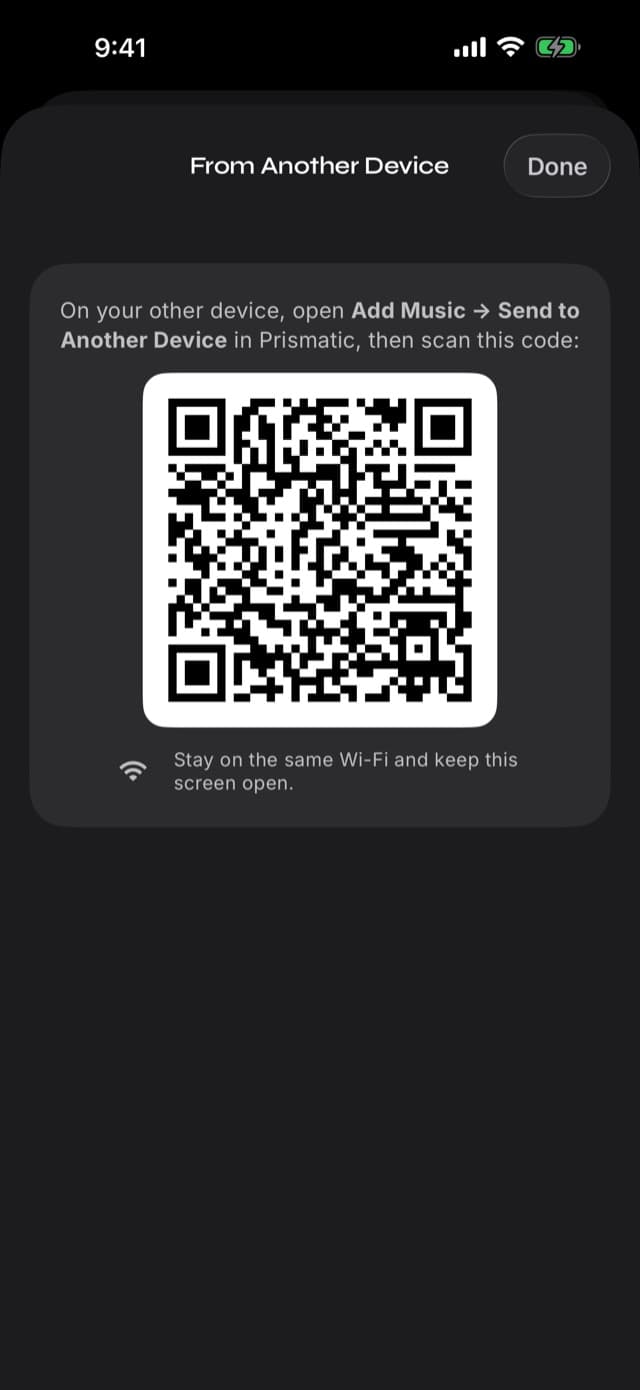
Open Prismatic Music, tap Add Music, then From Another Device → Start Receiving.
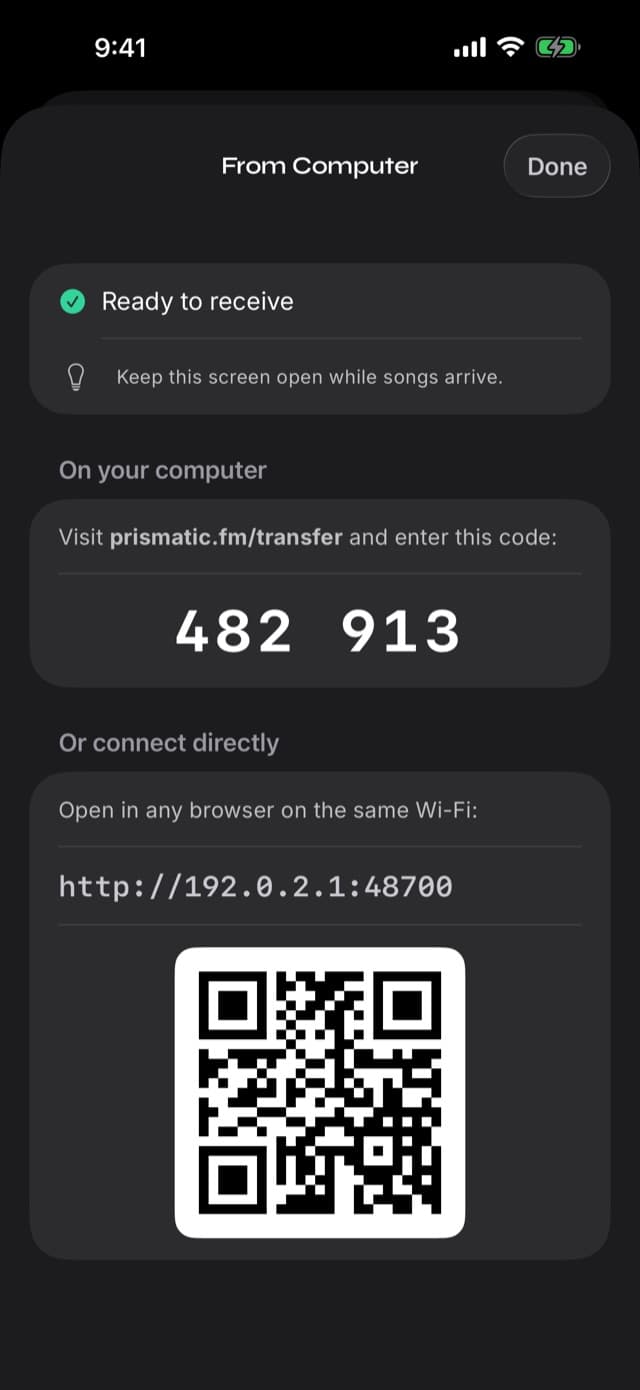
The screen shows a QR code and stays open, waiting. It also states the two requirements plainly: both devices need Prismatic and the same Wi-Fi, and nothing on either device will be deleted.
Step 2: On the old device: choose what to send
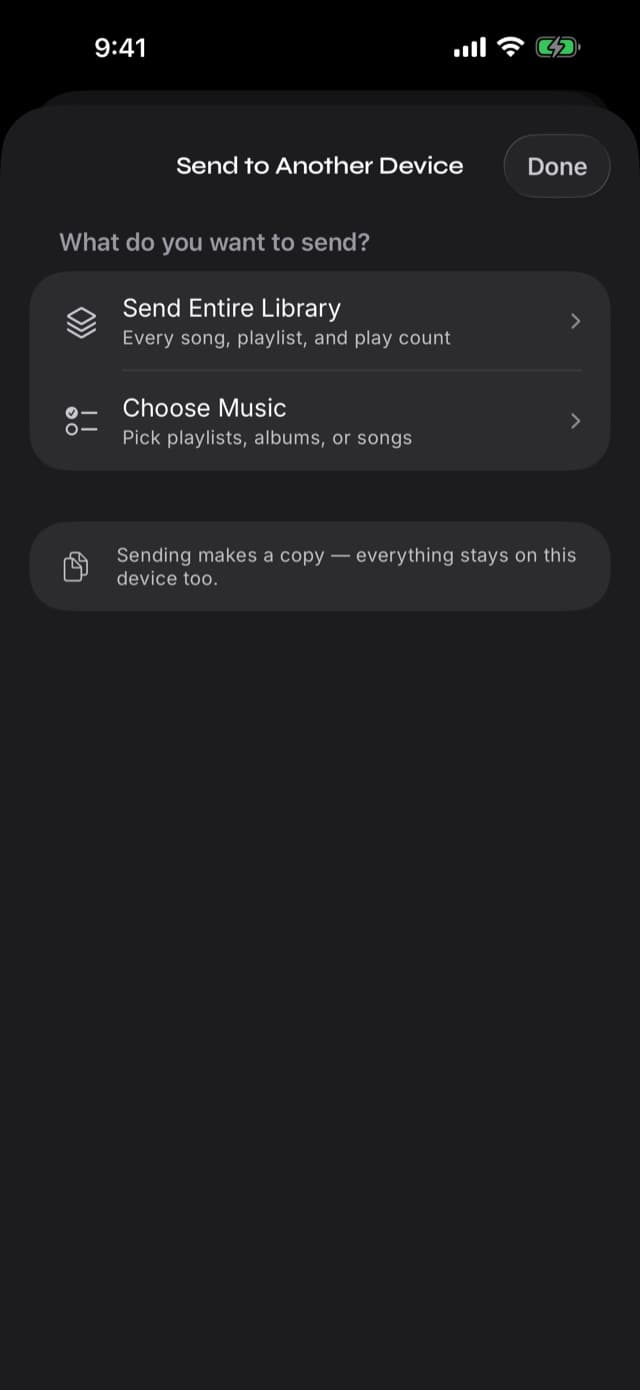
On the device that has the music, tap Add Music → Send to Another Device → Choose What to Send.
You get two options:
- Send Entire Library — every song, playlist, and play count.
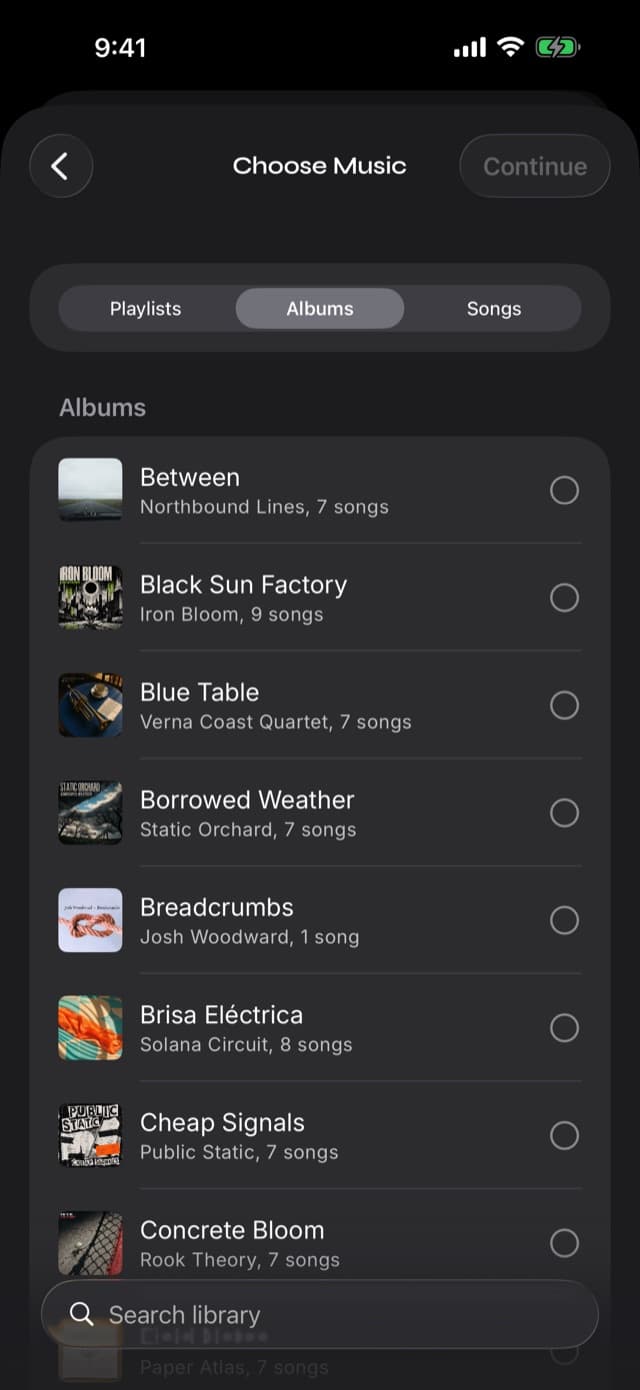
- Choose Music — pick specific playlists, albums, or individual songs.
Use the second one when you're seeding a second device with a subset rather than cloning a collection — it filters by Playlists, Albums, or Songs, with a search box for finding something specific in a large library.
Step 3: Scan the other device's code
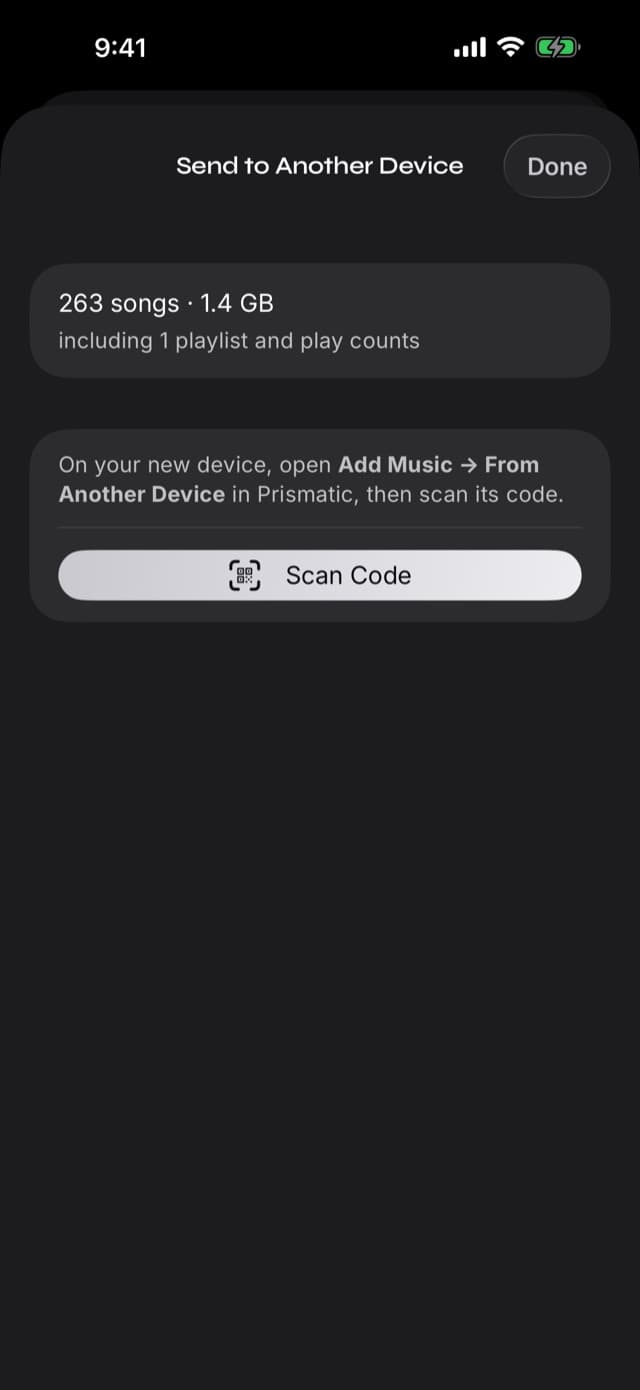
The sending device now asks you to scan the receiving device's QR code. Point one phone at the other and they pair.
On iPhone and iPad, scanning is the only way to pair: the sending device offers Scan Code and nothing else. (The receiving screen's Copy Code for a Mac is for the Mac app, which pastes a code instead of scanning — it isn't an alternative between two phones.) If aiming one device at the other is awkward, it's easier to move the receiving device — the one showing the code — than to look for a manual route that isn't there.
Step 4: Accept the transfer on the receiving device
The receiving device shows what's coming — how many songs, how large, how many playlists — and waits for you to tap Accept Transfer. Nothing moves until you do.
Then it runs. Songs arrive, get added to the library, and the progress readout counts up. Duplicates are skipped automatically, so if the receiving device already had some of these albums, they're recognized and passed over rather than doubled.
Step 5: Keep both apps open until it's done
This is the one rule that matters. iOS suspends backgrounded apps, and a suspended app can neither send nor receive. Leave both devices awake with Prismatic Music in the foreground while the transfer runs.
When it finishes you get a summary on both sides: how many songs were added, how many were already there, and how many playlists came across.
How long it takes
It depends almost entirely on your Wi-Fi and on how large the collection is. As a rough guide, a few thousand MP3s is a coffee; a large lossless library is a long lunch. Some practical advice:
Plug both devices in. A large transfer is sustained radio and disk work on both ends, and a phone that dies at 80% is a phone you have to start again on (though, mercifully, not from zero — see below).
Prefer 5 GHz. If your network offers separate 2.4 GHz and 5 GHz names, put both devices on the 5 GHz one. The difference on a 40 GB library is measured in hours, not minutes.
Check free space first. The receiving device needs room for the whole library. iOS will not warn you politely in advance; it will simply start failing songs when the disk fills.
If the transfer stops early
Nothing is lost, and you don't start over.
Songs that already arrived stay in the receiving library. Cancelling on either device stops it for both — the songs already sent stay on the other device, the rest simply don't transfer. Run the transfer again and it resumes in the only sense that matters: songs already present on the receiving device are skipped automatically, so the second pass only moves what's missing.
The usual causes of an early stop are the familiar ones: one of the apps went to the background, a device slept, or the Wi-Fi dropped. If a device keeps sleeping mid-transfer, turn Auto-Lock off for the duration in the iOS Settings app under Display & Brightness.
Clearing the old device safely
If the old phone is being sold or handed on, don't rely on the transfer to have emptied it — it deliberately doesn't. Sending makes a copy.
Once the new device has everything and you've spot-checked a few albums:
- On the new device, play a handful of songs from different albums — enough to be sure the audio files themselves came across, not just the song list.
- On the old device, open Settings → Library Management → Clear Library. That permanently deletes its songs, playlists, artwork, and imported audio files.
- Then erase the device itself the normal way, in the iOS Settings app.
Do step 1 first. It is the only step you can't undo by repeating the transfer.
The alternative: re-importing from scratch
If both devices aren't available at once — the old phone is already gone, say — you're not stuck, provided your files still exist somewhere. The other routes in are:
- From a computer, over Wi-Fi. Drag the folders straight into the new phone's browser session: transfer music from a computer without iTunes.
- From the Files app or a cloud drive. If your collection lives in iCloud Drive, Dropbox, or on an external disk: play music from the Files app.
- From a USB flash drive or SSD, plugged straight into the phone: play music from a USB drive on iPhone.
All three give you the songs. None of them gives you the playlists and play counts — which is the argument for doing the device-to-device transfer while you still have both devices in your hands.
Common questions
- Does restoring my new iPhone from a backup bring my music library with it?
- Usually yes. Prismatic Music's library lives in normal app storage, so an iCloud or encrypted computer backup, or a Quick Start migration, carries it across with everything else. The device-to-device transfer is for the cases where that doesn't apply: keeping both phones in use, adding an iPad, or a library you excluded from iCloud backup because of its size.
- Do my playlists and play counts survive the transfer?
- Yes. A device-to-device transfer carries songs, playlists, and play counts. That's the main reason to use it instead of re-importing your files from scratch — a re-import gives you the songs but not the history you built around them.
- Does sending delete the music from my old phone?
- No. Sending makes a copy; everything stays on the sending device too. If you want the old device empty afterwards, clear its library deliberately in Settings once the transfer has finished and you've checked the new one.
- What if the transfer is interrupted?
- Songs that already arrived stay in the receiving library, and the other device is told to stop sending the rest. Start the transfer again and it picks up where it left off — songs already on the receiving device are skipped automatically.
- Do I need a computer or an internet connection?
- Neither. The two devices talk to each other directly over your local Wi-Fi network. Nothing is uploaded, no account is involved, and the music never leaves your home network.
- Can I send just one playlist instead of everything?
- Yes. Choose Music lets you pick specific playlists, albums, or individual songs rather than the whole library — useful for sharing a set with a second device without duplicating a 60 GB collection.
- Can I transfer between an iPhone and an iPad?
- Yes. Any two devices running Prismatic Music on the same Wi-Fi network can transfer in either direction.