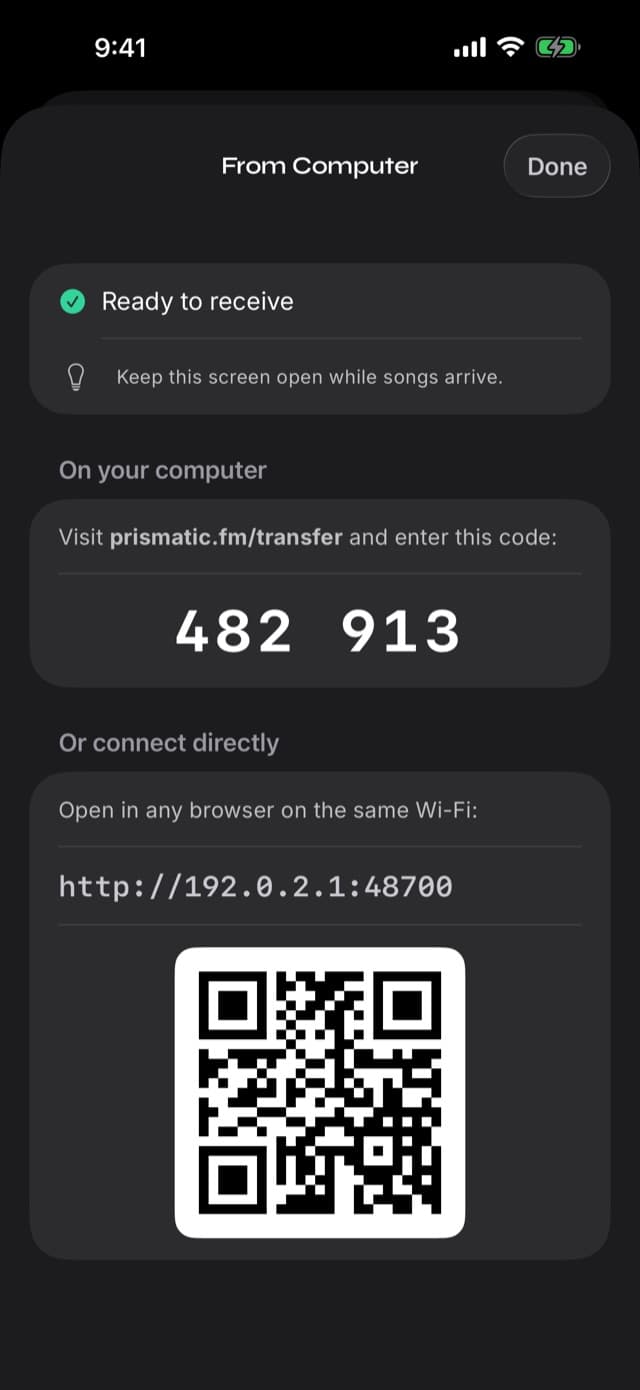
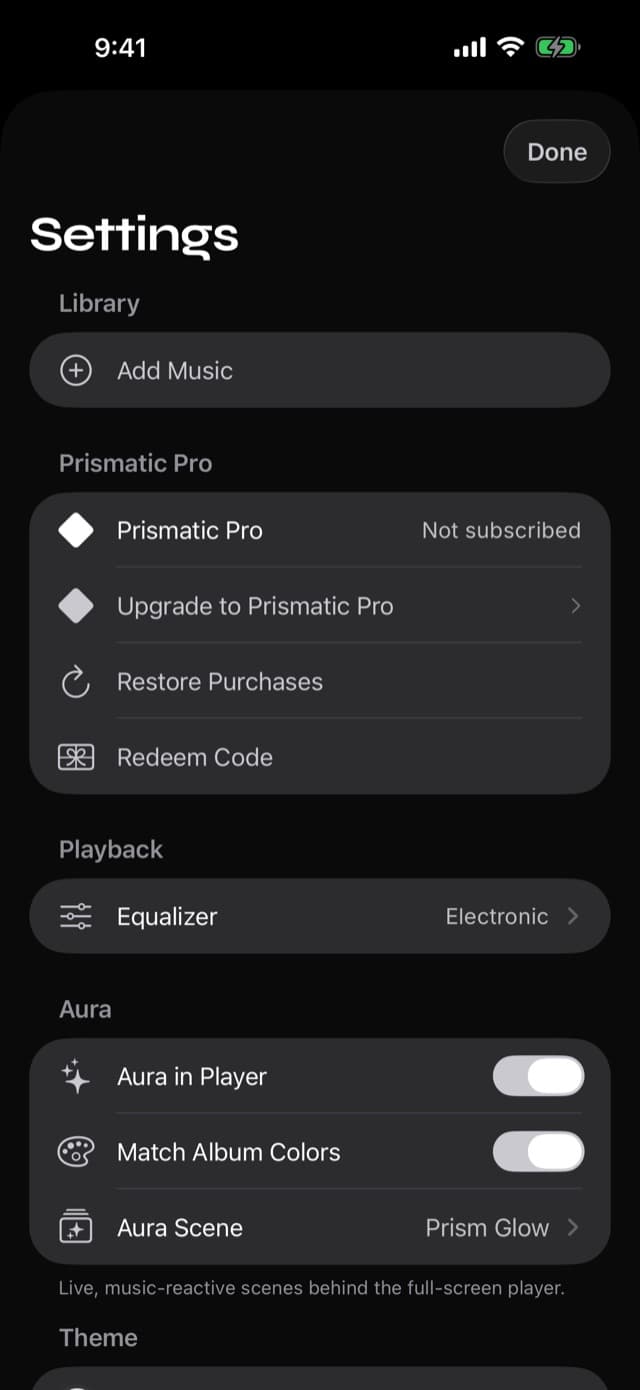
How to Play Music from a USB Flash Drive on iPhone
Short answer
- iOS can read USB drives in the Files app — but only if the drive is formatted exFAT, FAT32, APFS, or HFS+. NTFS drives will not mount.
- Plug the drive in, then in Prismatic Music tap Add Music → Files & Cloud Storage → Browse Files and pick the drive's music folder.
- The songs are copied onto your iPhone, so they keep playing after you unplug the drive — which is the part the Files app alone can't do.
- Bus-powered SSDs sometimes need a powered hub; a drive that mounts and then vanishes is almost always a power problem.
- Takes about
- 10 minutes
- You'll need
- A USB-C iPhone or iPad, or a Lightning-to-USB adapter · A drive formatted exFAT, FAT32, APFS, or HFS+ · Prismatic Music
On this page
Keep listening after you unplug
Get Prismatic Music for iPhone and iPad to import songs from your USB drive.
There is a specific kind of frustration that comes from holding a flash drive with two thousand songs on it in one hand and an iPhone in the other. The files are right there. The phone has a USB port. And yet the built-in Music app will not touch them.
It's not as hopeless as it looks. iOS has read external drives since iOS 13, and the gap is not the connection — it's that Apple's Music app only plays from its own library. This guide covers the whole path: what iOS can actually do with a USB drive, the two things that stop drives from mounting, and how to get the music off the drive and into a library that keeps working after you pull the drive out.
What an iPhone can and can't do with a USB drive
It can mount the drive. Plug a USB stick or SSD into an iPhone and it appears in the Files app under Locations, alongside iCloud Drive and On My iPhone. You can browse folders, copy files, and open documents.
It can preview an audio file. Tap an MP3 in the Files app and it plays. That's a file preview, though — there's no library, no queue, no playlists, no album view, and no way to shuffle a collection. It's the equivalent of double-clicking a file on a desktop, not of opening a music player.
It can't play from the drive once you unplug it. Obvious when stated, but it's the crux: anything played "from the drive" stops existing the moment the drive is gone. A USB stick is a fine way to carry music to a phone and a poor way to listen on one.
Apple's Music app ignores the drive entirely. It plays its own library and your Apple Music subscription, and there's no import-from-Files route into it.
So the working plan is: use the drive as a delivery mechanism, and import the music into a player that keeps its own library on the device. That's what Prismatic Music does, and the import path runs straight through the Files app — so it sees the drive the same way Files does.
Before you plug in: format and power
Two things stop more USB drives than everything else combined.
The filesystem
iOS reads drives formatted exFAT, FAT32, APFS, or Mac OS Extended (HFS+). It does not read NTFS — the default Windows format for large disks. An NTFS drive doesn't produce a helpful error; it simply never appears in Files, which is why people conclude their phone "doesn't support USB".
If your drive is NTFS, copy the music off it onto a computer, reformat the drive as exFAT, and copy the music back. exFAT is the pragmatic choice: Windows, macOS, and iOS all read and write it, and it handles files over 4 GB, which FAT32 cannot.
Power
A USB port on an iPhone supplies modest power. Flash drives are usually fine. Bus-powered portable SSDs and mechanical drives frequently are not — they'll mount for a moment and disappear, or never appear at all, or work on an iPad and not on an iPhone.
The fix is a powered USB hub: drive into the hub, hub into the phone, hub into the wall. It looks inelegant on a desk and it turns "my drive doesn't work" into "my drive works" more often than any other single change.
Also check the cable itself. Plenty of USB-C cables sold for charging carry no data lines at all.
Which iPhones take a drive directly? iPhone 15 and later have USB-C, so a USB-C drive plugs straight in and a USB-A drive needs only a simple adapter. Earlier iPhones use Lightning and need a Lightning-to-USB adapter. Recent iPads have USB-C. In all cases the drive appears in the Files app under Locations.
Import music from a USB drive
With the drive mounted and visible in the Files app, the import itself is short.
Step 1: Open Add Music, then Files & Cloud Storage
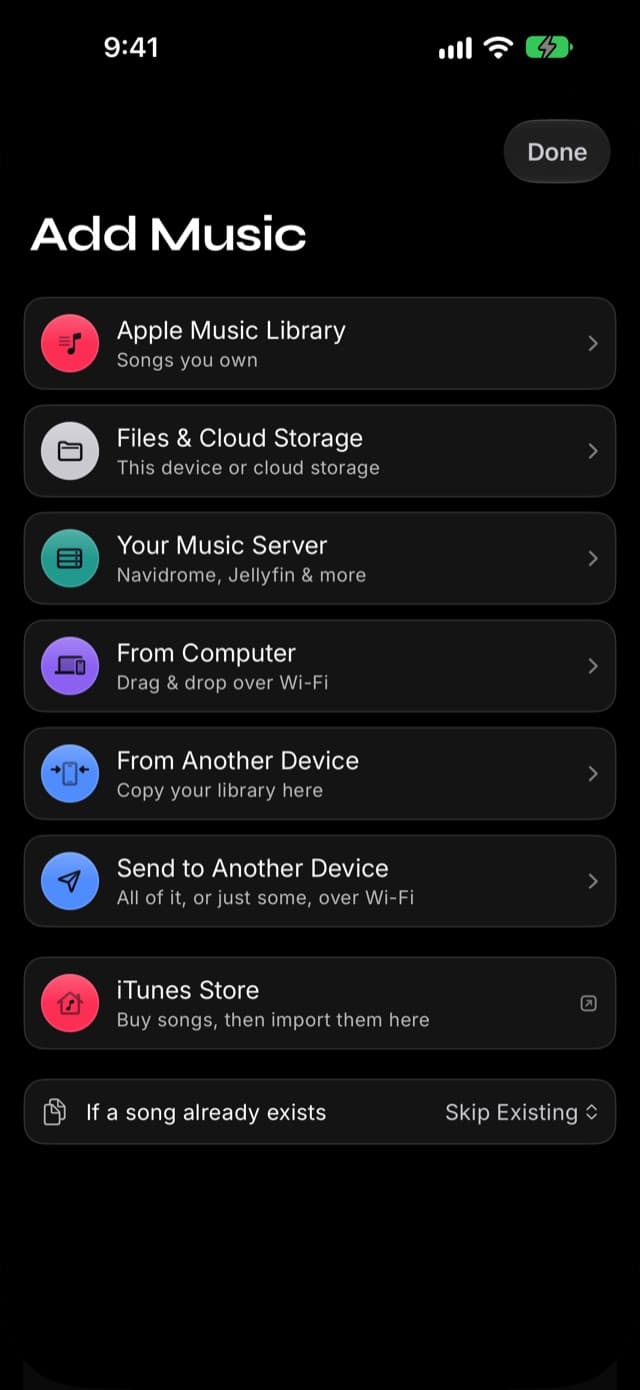
In Prismatic Music, tap Add Music on the Home tab and choose Files & Cloud Storage — the same door for a USB drive, iCloud Drive, and On My iPhone.
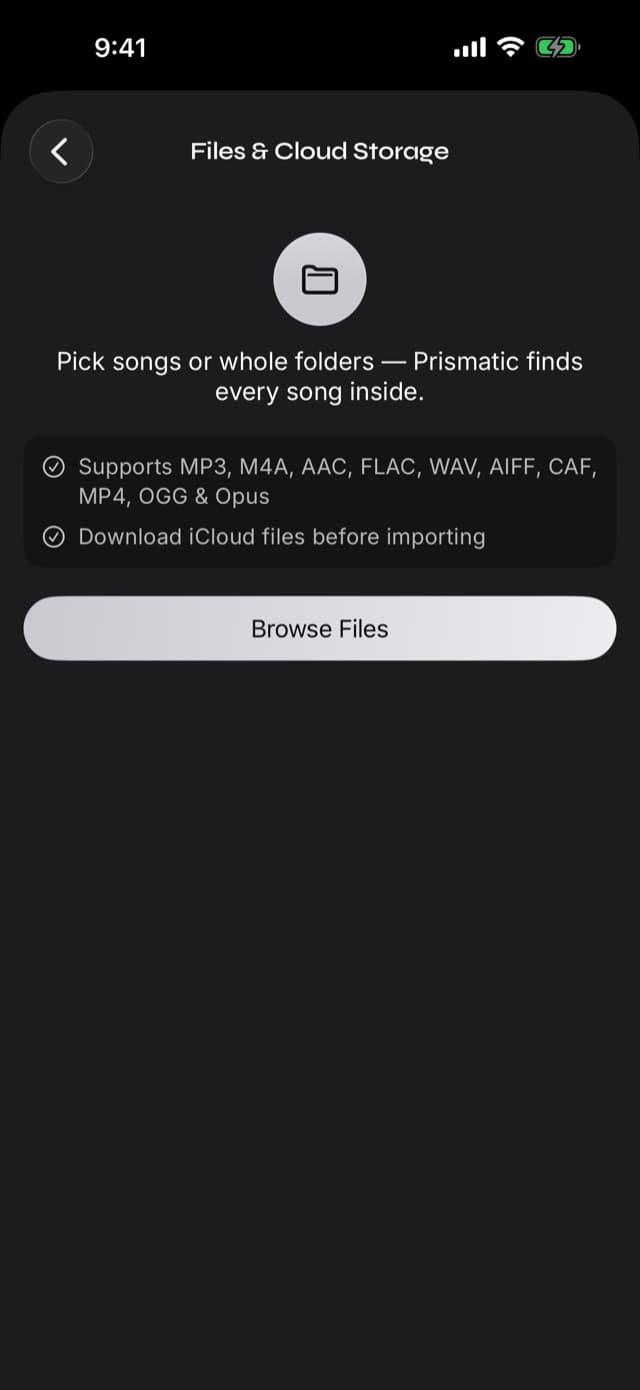
Step 2: Tap Browse Files and open the drive
The iOS file picker opens — the same one the Files app uses. Your USB drive is under Locations, alongside On My iPhone and iCloud Drive. Open it and navigate to your music.
Step 3: Select a folder, not individual files
You can select individual songs, but selecting the folder is almost always
what you want. Prismatic walks the whole tree, subfolders included, and imports
every supported audio file it finds — so Music/ with two hundred album
folders under it is one selection, not two hundred.
Step 4: Leave the drive connected until it finishes
Each song is copied from the drive into your library on the phone, with its tags and embedded artwork. A large folder takes a while, and unplugging mid-import is the one thing guaranteed to break it. Keep the app in the foreground and the drive attached until the import panel reports it's done.
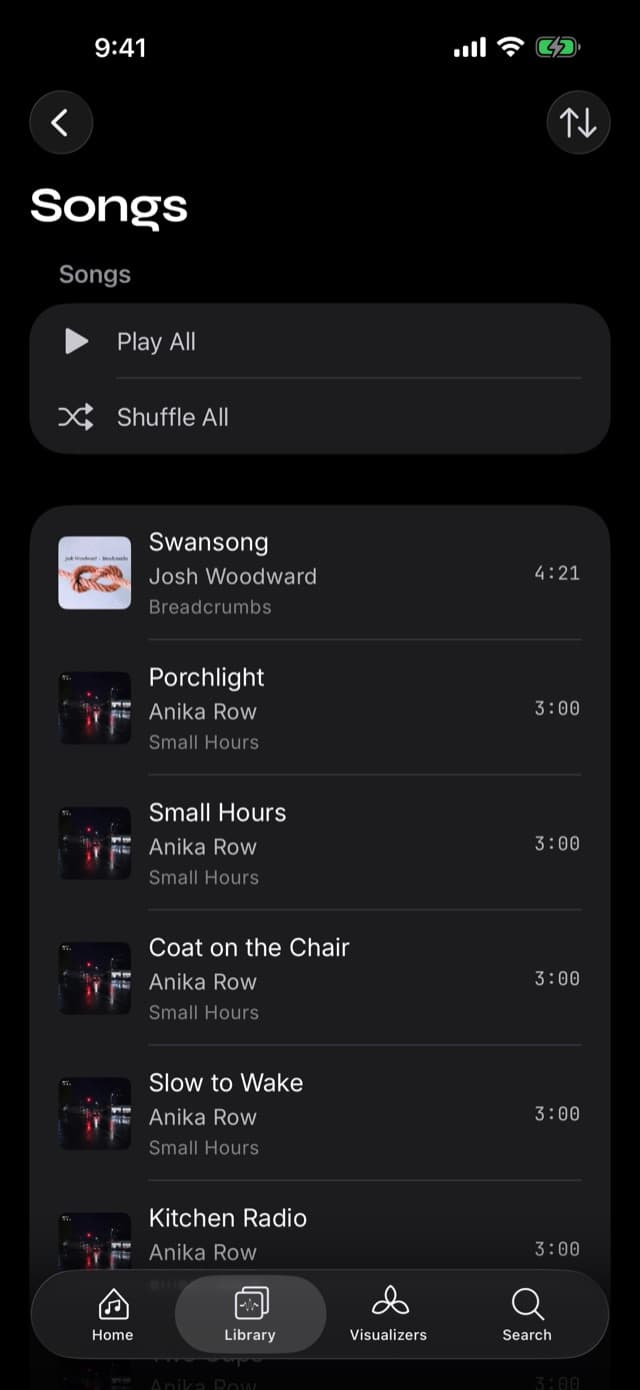
Step 5: Unplug, and keep listening
That's the payoff. The music now lives on the phone: it plays in Airplane Mode, on a plane, in a basement, with the drive back in a drawer.
Why import instead of playing in place?
It's a fair question, and the answer is not just "because the drive comes out".
Battery and heat. Keeping an external drive powered from the phone drains it noticeably, and reading continuously from a spinning or flash drive over USB is worse for battery life than reading from internal storage.
Metadata and organization. A folder tree is not a library. Importing reads each file's tags and builds artists, albums, and searchable text out of them — which is what makes a collection browsable rather than navigable.
Reliability. External volumes on iOS can be unmounted by the system at any time — a background app under memory pressure, a power dip, a sleep cycle. Music that lives on the device isn't subject to any of that. (If you have imported and songs still won't play, the causes are covered in fixing music that won't play offline.)
Storage math worth doing first
Importing copies files, so the collection needs room on the phone. Do the arithmetic before you start, not at 94%.
| Format | Roughly per album | 500 albums |
|---|---|---|
| MP3 320 kbps | ~90 MB | ~45 GB |
| AAC 256 kbps | ~70 MB | ~35 GB |
| FLAC / ALAC (lossless) | ~300 MB | ~150 GB |
| WAV / AIFF (uncompressed) | ~500 MB | ~250 GB |
If the numbers don't work, you have two good options: import selectively — the albums you actually reach for, rather than the archive — or keep the lossless masters on the drive and import a lossy copy for the phone. Prismatic plays both natively, so this is a storage decision rather than a quality compromise you're stuck with. See formats and lossless for the detail.
When the drive doesn't appear
Work down this list; it's ordered by how often each one is the answer.
- The drive is NTFS. Reformat to exFAT (after copying the music off).
- It needs more power. Use a powered USB hub. This is the fix for most portable SSDs.
- The cable is charge-only. Swap it for one you know carries data.
- The drive is encrypted with BitLocker or a vendor tool. iOS can't unlock those; decrypt it on the computer first.
- The adapter is the problem, not the drive. Cheap Lightning-to-USB adapters are notoriously variable. Apple's own adapter is the reliable control test.
- The drive has a single huge partition with an unusual scheme. A drive partitioned for a specific device — a car stereo, a games console, a NAS — may not present anything iOS recognizes. Reformat it as a plain exFAT volume.
If the drive appears in Files but Prismatic's picker doesn't show its music,
you're usually looking at file types iOS doesn't classify as audio — .wma and
.ape, for instance, which we don't play either. Convert those on a computer
first.
External SSDs and big collections
If you're moving a genuinely large library — the kind measured in hundreds of gigabytes — a USB drive is not always the best tool, even when it works perfectly.
From a computer, the Wi-Fi route is often easier. No adapter, no power worries, no reformatting: drag the folders into your phone's browser session instead. See transferring music from a computer without iTunes.
From another phone or iPad, the direct transfer is better. It carries playlists and play counts as well as songs, which no file-level copy can. See moving a library to a new iPhone.
The USB route earns its place when the music only exists on that drive, when there's no shared network to use, or when you're working from someone else's computer and would rather not install or sign into anything. That's a real scenario — it's just not the only one.
Common questions
- Can an iPhone read a USB flash drive?
- Yes. Since iOS 13, the Files app mounts external drives connected over USB. iPhone 15 and later have USB-C, so a drive plugs straight in; earlier iPhones need a Lightning-to-USB adapter. The drive must be formatted exFAT, FAT32, APFS, or HFS+.
- Why doesn't my USB drive show up on my iPhone?
- Three usual causes: the drive is formatted NTFS, which iOS can't read; it needs more power than the phone supplies, which affects many bus-powered SSDs and some large mechanical drives; or the adapter is a charge-only cable rather than a data one. Try a powered USB hub before assuming the drive is dead.
- Can I play music directly off the USB drive without importing it?
- The Files app can preview an audio file in place, but that's a preview, not a music player — no library, no playlists, no queue, and playback stops when you unplug. Importing copies the songs onto the phone so they behave like a real library and survive the drive being removed.
- Does importing use up storage on my iPhone?
- Yes. Imported songs are copied into the app's storage on the device, which is exactly what makes them play offline. A 20 GB folder of FLAC uses roughly 20 GB on the phone; import selectively if space is tight, or convert to a lossy format before transferring.
- What formats can I import from the drive?
- MP3, M4A, AAC, FLAC, WAV, AIFF, CAF, MP4, OGG, and Opus. Files import as they are, with no conversion — your FLAC rips stay lossless.
- Can I import my whole music folder in one go?
- Yes. Select the folder rather than individual files and Prismatic walks the whole tree, subfolders included. Very large folders take a while, so keep the app in the foreground and the drive connected until it finishes.
- Will the songs I copied from Apple Music work?
- No. Files downloaded from the Apple Music streaming service are copy-protected and can't be played by any third-party app, wherever you copy them. Music you own — purchases, CD rips, Bandcamp downloads — imports normally.