How to Import Music from Navidrome, Jellyfin, or Your Own Server to iPhone
Short answer
- Open Prismatic Music, tap Add Music → Your Music Server, and enter the address you'd type in a browser (for example nas.local:4533), your username, and your password.
- Browse the server by Albums, Playlists, Artists, or Starred, tick what you want, and tap Import.
- The songs you pick are copied onto the iPhone as the original files — nothing streams, so they keep playing with the server off, the Wi-Fi gone, or the plane in the air.
- Free, no Prismatic Pro required. Your password is stored in the device's keychain, and the songs travel from your server to your phone without passing through us.
- Takes about
- 10 minutes
- You'll need
- An iPhone or iPad with Prismatic Music · A music server you run: Navidrome, Gonic, Airsonic, Ampache, Jellyfin, or Emby · Its address, plus the username and password you sign in with
On this page
If you run Navidrome, Jellyfin, or anything else that serves your own music collection, you already solved the hard part: the files are tagged, organized, backed up, and sitting on a machine you control. The annoying part is the last hundred feet — getting a slice of that onto the phone in your pocket, in a player you actually enjoy using, in a way that keeps working when there's no network.
Prismatic Music connects to your server, shows you what's on it, and copies whatever you pick onto the device. This guide covers the whole flow, the address that trips everyone up, and an honest list of what this does and doesn't do.
Copied, not streamed — and why that matters
Most self-hosted music apps are streaming clients: they play from the server over the network, and "download" is a cache they manage for you. Prismatic Music works the other way around. You pick albums, playlists, or individual songs, and those songs are copied to the device once, as the original files, and added to your library next to everything else you've imported.
After the import, the server is out of the picture entirely:
- Playback never touches the network. Airplane Mode, the subway, a cabin in the woods, your server rebooting for updates — none of it interrupts anything.
- The songs behave like any other music in your library: searchable, sortable into playlists, run through the equalizer, and read by the visualizers as real audio rather than as a preset loop.
- Nothing re-downloads later. The bytes are on the phone.
The trade is real and worth stating: a 4,000-album server doesn't fit on a 256 GB iPhone, so you choose what comes along. In practice that's how most people listen anyway — a shelf, not a warehouse.
What you'll need
- A server you run. Navidrome, Gonic, Airsonic or Airsonic-Advanced, Ampache, and other Subsonic-compatible servers all work, as do Jellyfin and Emby. It doesn't matter whether it runs on a NAS, a home server, a Raspberry Pi, or a VPS.
- Its address, in the same form you'd type into a browser — see below if you're not sure.
- Your username and password for that server.
- The same Wi-Fi as the server, or an
https://address if you're connecting from elsewhere.
Prismatic Music is free on the App Store, and this route isn't a paid feature.
Connect your server and import
Step 1: Open Add Music and choose Your Music Server
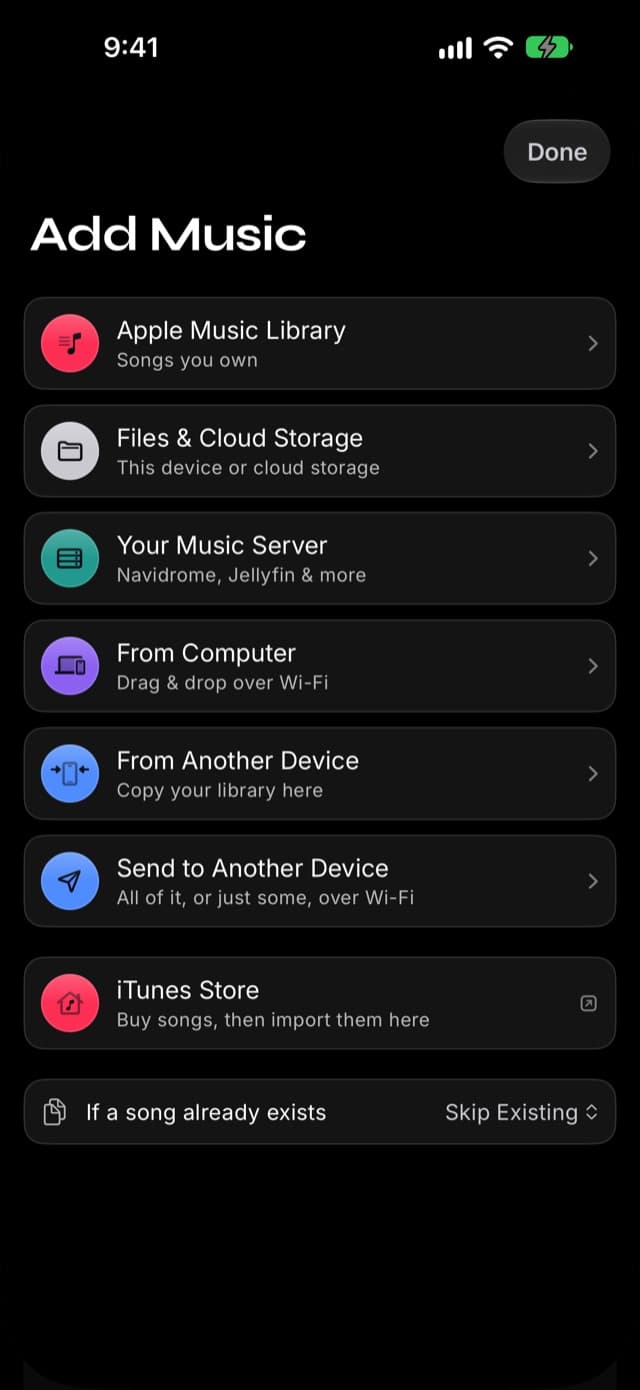
Open Prismatic Music, tap Add Music on the Home tab, then Your Music Server.
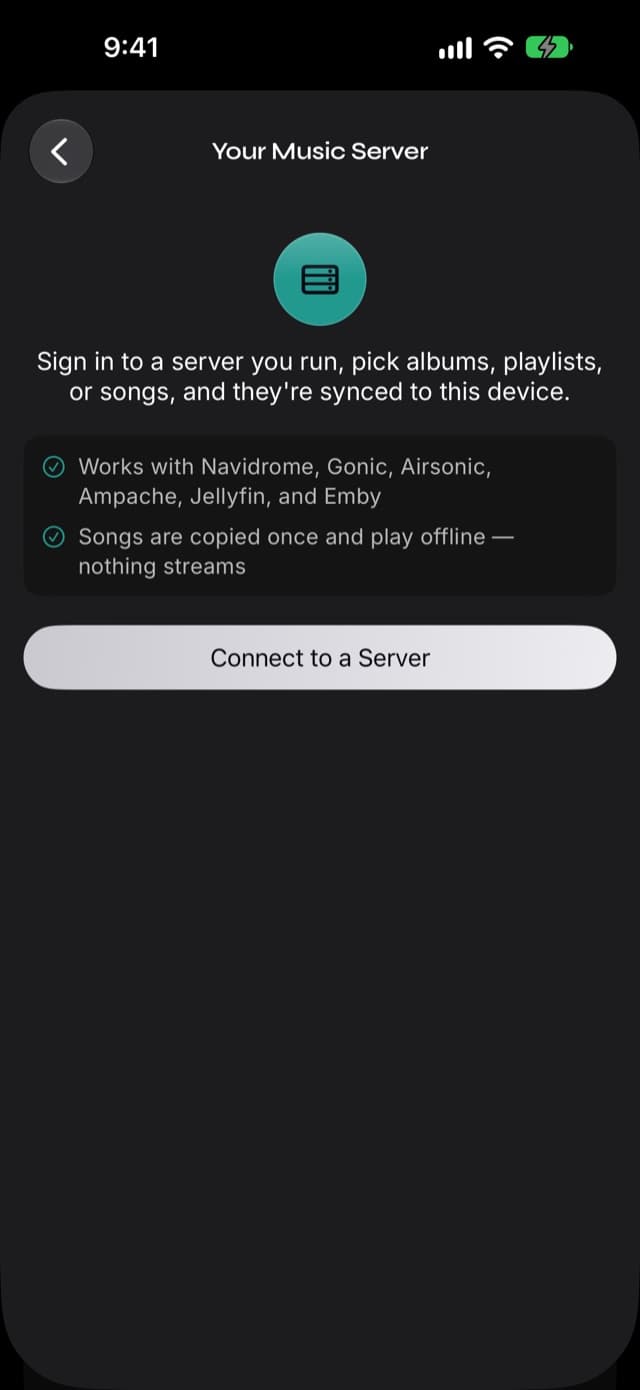
The page that opens says what's about to happen — you sign in to a server you run, pick albums, playlists, or songs, and they're copied to this device — along with the two facts that matter most: which servers work, and that nothing streams.
Step 2: Enter the address and sign in
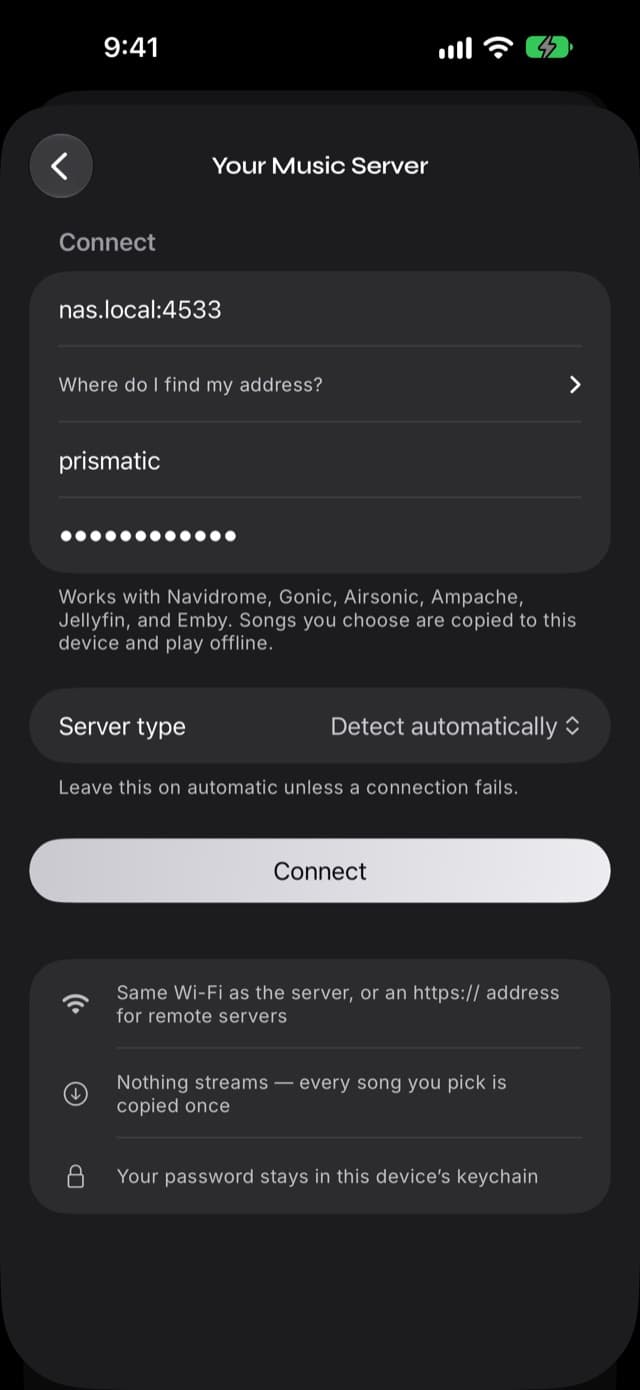
Tap Connect to a Server. The sign-in form asks for three things:
- Server address — what you'd type in a browser to reach it, like
nas.local:4533orhttps://music.example.com. Prismatic works out the rest. - Username and Password — your account on that server, not an account with us. There isn't one.
Leave Server type on Detect automatically; Prismatic tries the Subsonic-compatible protocol and then the Jellyfin one, and the manual setting is there for the rare server that answers to both. Tap Connect.
(That form opens by itself the first time. Once you've saved a server, you'll land on the server list instead, with Add a Server at the bottom.)
If your server uses a self-signed certificate — common on a NAS behind its own HTTPS — you'll get a trust prompt showing the certificate's SHA-256 fingerprint before anything else happens. Check it matches what your server reports, then tap Trust & Connect. Prismatic remembers that fingerprint and warns you if it ever changes.
Step 3: Browse the server and pick your music
You land in the server's collection, with four ways through it: Albums, Playlists, Artists, and Starred. There's a search field for going straight to something by name.
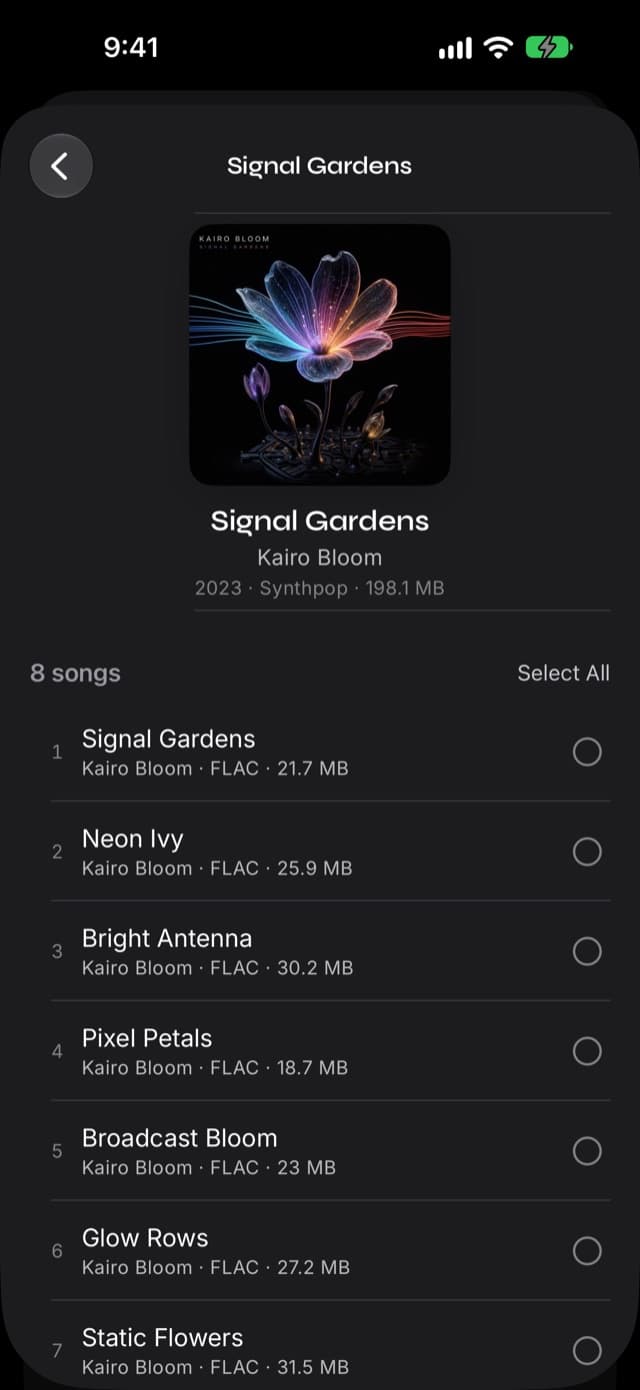
Tap the circle on a row to take a whole album or playlist. Tap the row itself to open it and pick individual songs — the album page lists every song with its format and size, and has a Select All control when you want the lot.
Anything you've already imported from this server is labeled In Library and sits out of the selection, so a second visit only offers you what's new.
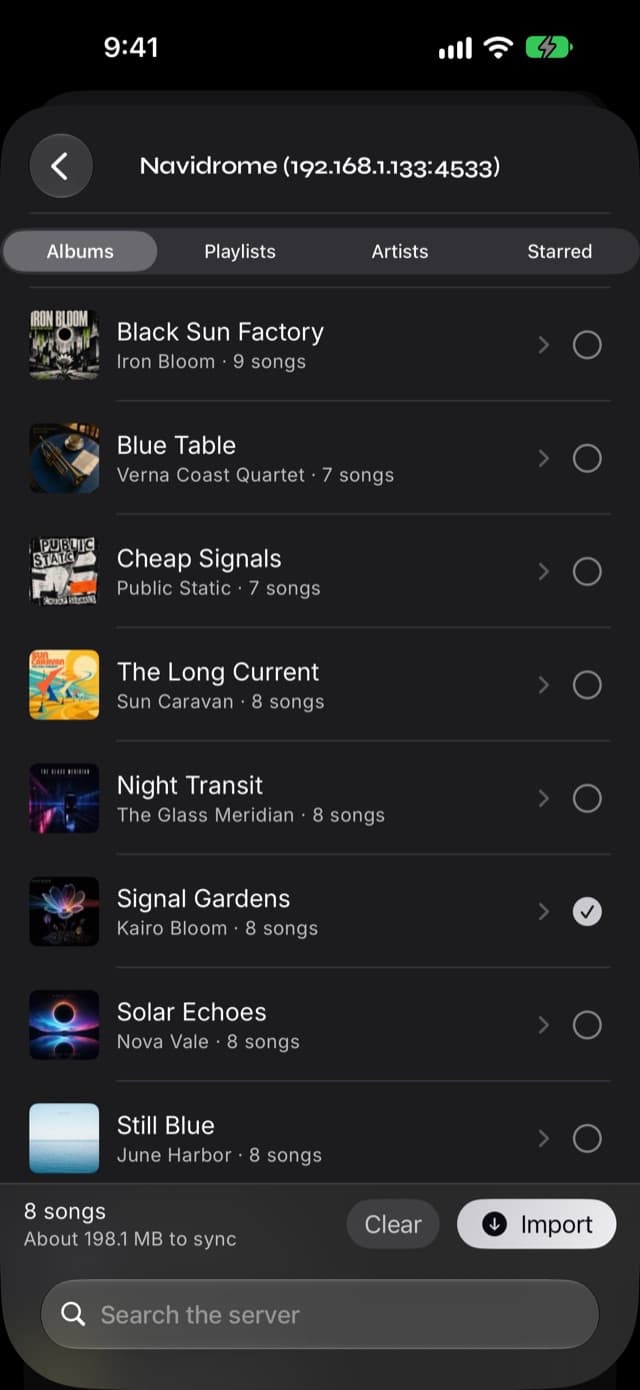
The bar at the bottom keeps a running count and an estimate of how much space the selection needs — worth a glance before you take a lossless discography onto a phone with 9 GB free.
Step 4: Import, and keep the app open
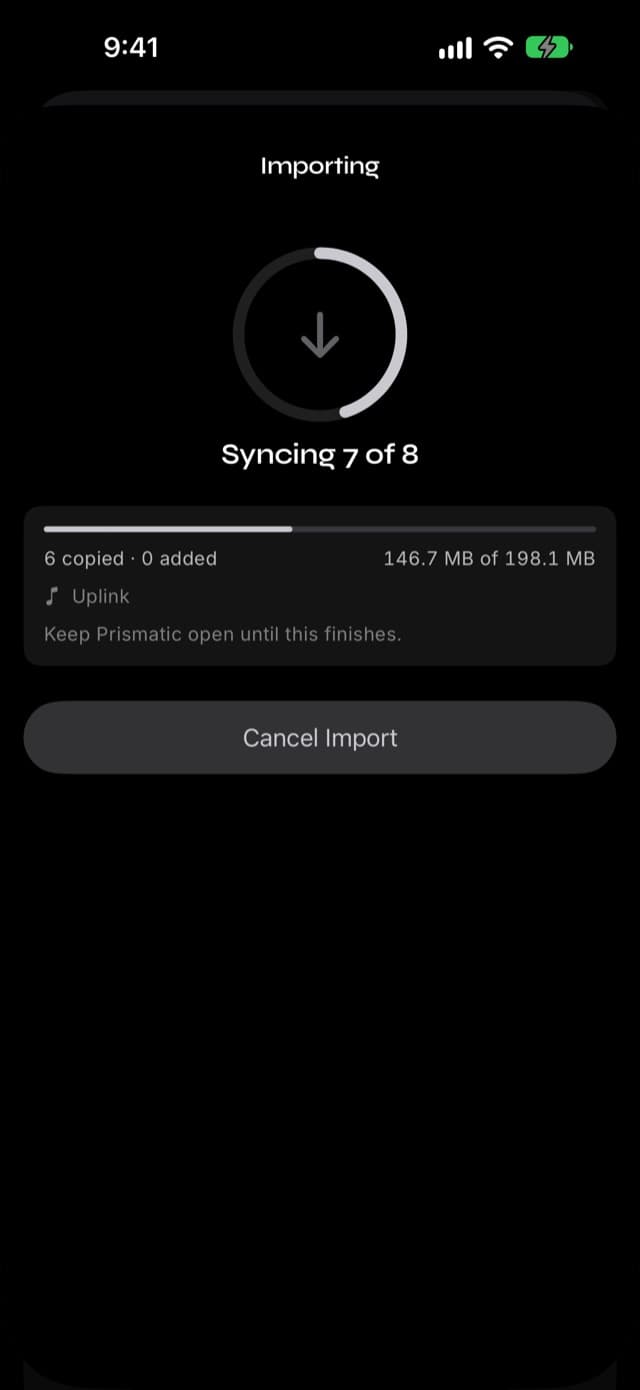
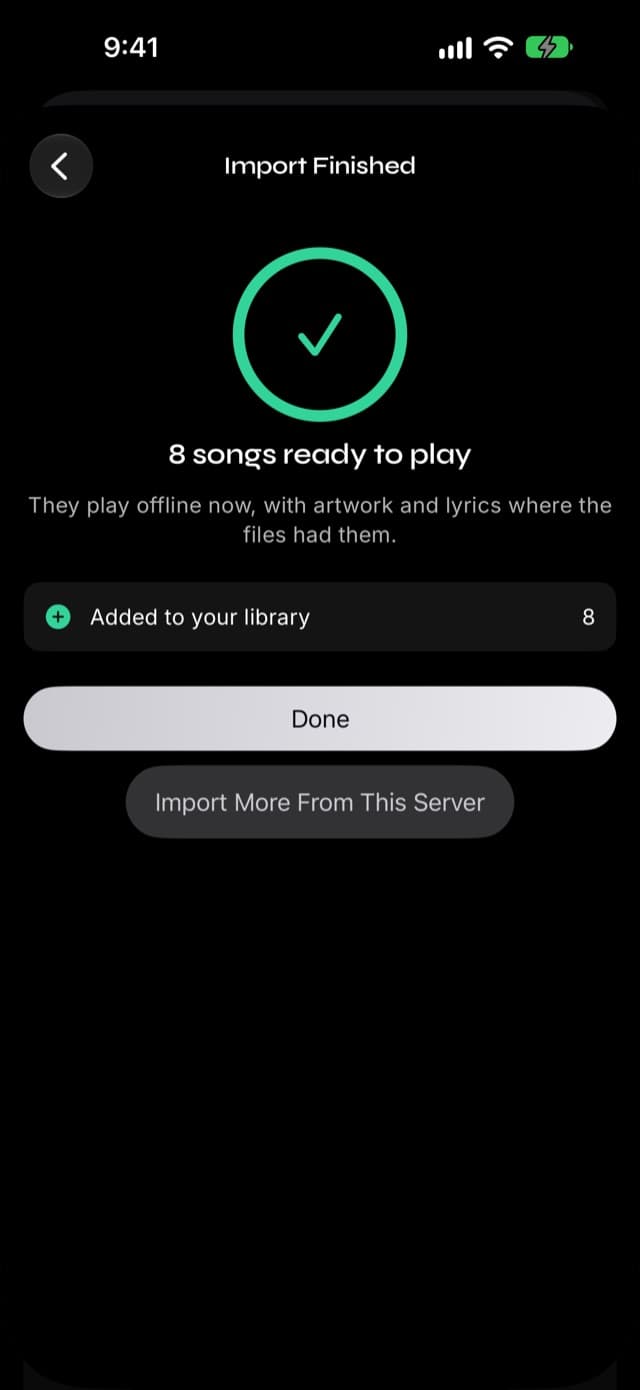
Tap Import. Prismatic asks the server for the songs you picked, copies them a few at a time, and hands each one to the same importer that handles files from anywhere else: tags read, artwork attached, duplicates caught.
The progress screen shows the song currently copying, how many have landed, and how much has come across. You can cancel at any point — songs the screen counts as added are in your library and stay there, while anything still in the copied column comes down again next time. On a normal album-sized import that means cancelling early leaves you with nothing, which costs you the download and nothing else.
Keep Prismatic Music in the foreground while it runs. iOS suspends background apps aggressively, and a suspended app can't finish a copy.
Step 5: Come back for more, whenever
Your server stays in the list under Saved Servers, so the next import is two taps and no typing. Swipe a saved server (or press and hold it) for Forget Server, which removes the connection and leaves every song you imported exactly where it is.
It asks for the original file, and checks. If your server is set up to convert audio on the way out, Prismatic stops and says so — "the server sent a converted file instead of the original" — rather than quietly filling your library with re-encoded copies of your own FLACs. Turn off transcoding for downloads on the server and run the import again.
Finding your server's address
This is where most first attempts fail, and it's almost always a port.
Navidrome, Gonic, Airsonic, Ampache. Use the address you already open in a
browser. Navidrome's default is port 4533, so nas.local:4533 or
192.168.1.20:4533. Gonic and Airsonic commonly sit on 4747 and 4040. If you
reach it in a browser on the same network, that exact string works here.
Jellyfin and Emby. Port 8096 by default. Jellyfin's Dashboard → Networking page shows the LAN address it's listening on. The same address that loads the web player is the one to type.
Synology, QNAP, Unraid, CasaOS. Whatever URL the package or container page links to. If you reach the server through the NAS's own reverse proxy, use that hostname and port instead of the container's.
A hostname beats an IP address. A router hands out new IP addresses when it
feels like it, and a saved server pointing at a stale one just stops working.
nas.local keeps working; 192.168.1.20 works until the day it doesn't.
You can leave off the scheme. Prismatic tries plain http first for an address
on your own network, and only https for anything on the public internet —
which is the rule in the next section but one.
What actually lands on the iPhone
The original file. A FLAC arrives as a FLAC, a 320 kbps MP3 as a 320 kbps MP3, ALAC as ALAC. Nothing is converted on the way in, which is the entire reason to keep a lossless collection. FLAC, ALAC, WAV, AIFF, MP3, AAC, OGG, and Opus all play natively.
The tags the files carry. Title, artist, album, track numbers, year, genre, embedded artwork, and embedded lyrics all come along, so albums land assembled rather than as a pile of file names. Lyrics and artwork stored beside the file on the server, rather than inside it, don't — those are a server feature, not part of the file.
Nothing you didn't ask for. No queue rewriting, no library reorganization, and nothing removed. This is a copy, not a sync: your server is untouched, and songs on the phone are never deleted to make the two match.
A song, once. If a file is already in your library — imported from a computer last year, say — it's matched instead of duplicated, and the summary tells you how many were matched that way. The duplicates setting on the Add Music screen (skip, replace, keep both) applies here like it does everywhere.
Reaching your server from outside the house
On your own Wi-Fi, a plain http:// address to a local server works and is the
normal case.
From anywhere else you need either https://, or a VPN that puts your phone
back on the home network. That isn't our rule: iOS blocks plain HTTP to
addresses on the public internet, so a server reached across the internet has
to be reached over HTTPS. Two normal ways to get there:
- A reverse proxy with a real certificate — Caddy, nginx, or your NAS's built-in one, with a certificate from Let's Encrypt. Type the public hostname.
- A private network — WireGuard, or your NAS's own VPN. Your phone joins
the home network, so the LAN address you use at home (
192.168.…) keeps working, plainhttpand all.
Tailscale is worth a sentence of its own, because it's the common case that
surprises people: its 100.x addresses and name.tailnet.ts.net hostnames are
not your local network as far as iOS is concerned, so a plain http://
address on one is refused. Two ways through: give the server a real certificate
with tailscale serve/tailscale cert and connect over https://, or type
the short MagicDNS name on its own — nas:4533, with no dots — which does
count as local.
Either way, the import behaves identically. Only the address changes.
When it won't connect
"Couldn't reach…" — wrong address, wrong port, or the phone isn't on the same network as the server. Open the same address in Safari on the phone: if the browser can't load it either, the problem is the address or the network, not the app.
"Servers outside your local network need an https:// address." — you gave a
plain http:// address for a host that isn't on your local network. See
above.
"…isn't a Subsonic-compatible or Jellyfin server." — something answered, but not a music server. Usually a NAS management page or a router login page on the port you typed. Check which port the music server is actually listening on.
"Wrong username or password." — worth checking that you're using the server's own account rather than the NAS admin, and that the account has access to the music library. On Jellyfin and Emby, a user with no library assigned signs in fine and then appears to have no music at all.
Auto-detect picked wrong. Rare, but if a connection fails on a server you know is reachable, set Server type explicitly and try again.
The certificate changed. You'll be told, and shown the old and new fingerprints. If you just renewed a certificate, that's expected. If you didn't, don't continue.
A saved server suddenly asks you to sign in again. Your password changed on the server. Sign In Again keeps the connection and everything it already imported.
What this doesn't do yet
An honest guide has to include the limits, and this feature is new.
It doesn't sync in the background. Nothing happens until you open Your Music Server and pick something. There's no "keep my phone current" rule, no scheduled refresh, and no notification when your server gets new music.
Playlists come across as songs, not as playlists. Select a playlist and its songs are imported; the playlist itself stays on the server. Build the playlist again in Prismatic Music and it'll work across everything in your library.
Nothing is written back. Stars, favorites, and play counts on your server aren't updated by what you play on the phone, and your Prismatic favorites stay on the phone.
There's no streaming of the rest. Songs you didn't import aren't playable from inside the app. That's the deliberate trade described at the top.
Keep the app open during an import. A long copy in the background will be suspended by iOS. Starting again skips everything that already made it into your library, and re-fetches whatever was still in flight.
SMB shares, Plex, and the honest alternatives
A plain SMB share — a music folder on a NAS with no music server in front of it — isn't something Prismatic connects to directly. The route that does work: connect to the share in Apple's Files app (Browse → the three dots → Connect to Server), then import from Files & Cloud Storage in Prismatic Music. The songs get copied to the device exactly the same way. Our Files app guide covers that path, including the "downloaded, not just listed" trap.
WebDAV takes one more step, because the Files app's own Connect to Server speaks SMB and not WebDAV. Use a WebDAV client that publishes your share as a location inside Files — Nextcloud's own app does this, as do several general WebDAV apps — and from there it's the Files route above.
Plex isn't supported. Its API is a different animal and Plexamp is the incumbent; if your whole collection lives in Plex and you want it on a phone, that's the honest recommendation today.
If your music is on a computer rather than a server, skip all of this and drag it over Wi-Fi from the computer's browser — no cable, no iTunes, nothing to install.
Once your server's music is on the device it's just your library: searchable, queueable, playable offline, and — if you want it — rendered live as beat-reactive visuals while it plays.
Common questions
- Which music servers does Prismatic Music work with?
- Navidrome, Gonic, Airsonic and Airsonic-Advanced, Ampache, and other Subsonic-compatible servers, plus Jellyfin and Emby. One sign-in form covers all of them — Prismatic detects which kind it's talking to.
- Does it stream from my server, or copy the files?
- It copies. Every song you pick is downloaded once as the original file and added to your library on the device. Nothing streams, so playback doesn't stop when you leave the house, the server reboots, or the plane doors close — and nothing re-downloads the next time you play it.
- Does this need Prismatic Pro?
- No. Connecting a server and importing from it is part of the free app. Prismatic Pro unlocks the full visualizer collection and custom equalizer curves — it has nothing to do with how your music gets in.
- Can I connect to my server from outside my home?
- Yes, over an https:// address. iPhones block plain http:// to an address on the public internet, so a remote server needs HTTPS — a reverse proxy with a real certificate, or a private network like Tailscale. On your own Wi-Fi, a plain http:// address to a local server works as-is.
- My server uses a self-signed certificate. Will it connect?
- Yes. Prismatic shows the certificate's SHA-256 fingerprint and asks whether to trust it. Check it against the one your server shows, tap Trust & Connect, and the fingerprint is remembered. If the certificate later changes, you're asked again and shown both fingerprints.
- Will it download songs I already have twice?
- Albums and songs you've already imported from that server are labeled In Library and can't be picked again, whatever your settings — so re-running an import to catch the three albums you added last week costs you nothing but the time to pick them. A song that matches one you imported some other way is matched rather than duplicated, unless you've set If a song already exists to Keep Both on the Add Music screen, which does what it says.
- Do my server playlists come across as playlists?
- Not yet. Selecting a playlist imports the songs in it — the playlist itself stays on the server, and you'd rebuild it in Prismatic Music. Playlists you make in Prismatic work on everything in your library, wherever it came from.
- Does it sync automatically when I add music to my server?
- No. This is an import you run, not a background sync: nothing happens on the phone until you open Your Music Server and pick something. New albums on the server show up the next time you browse it.
- Does my password or my music pass through your servers?
- No. Your password is stored in the device's keychain and sent only to the server you entered, and the songs travel directly from your server to your phone. Prismatic Music has no account and no cloud library.
- What about Plex, SMB shares, or WebDAV?
- Plex isn't supported. For an SMB share, connect to it in the Files app (Browse → ⋯ → Connect to Server), then import from Files & Cloud Storage in Prismatic Music — the songs are copied to the device the same way. WebDAV isn't in the Files app's own Connect to Server, so you'd need a WebDAV client that publishes itself as a location in Files; once it does, the same import works.
Keep reading
- Every way to import music into Prismatic MusicApple Music library, Files app, your computer over Wi-Fi, another phone, and your own server.
- FLAC and lossless playback on iPhoneYour server's originals arrive untouched — here's what plays natively.
- Best offline music player for iPhone in 2026How the local players compare on formats, import routes, ads, and price.