FLAC Player for iPhone: The Lossless Guide
Play your FLAC albums on iPhone with Prismatic Music. Follow the screenshot guide to import your files, build your library, and listen offline.
On this page
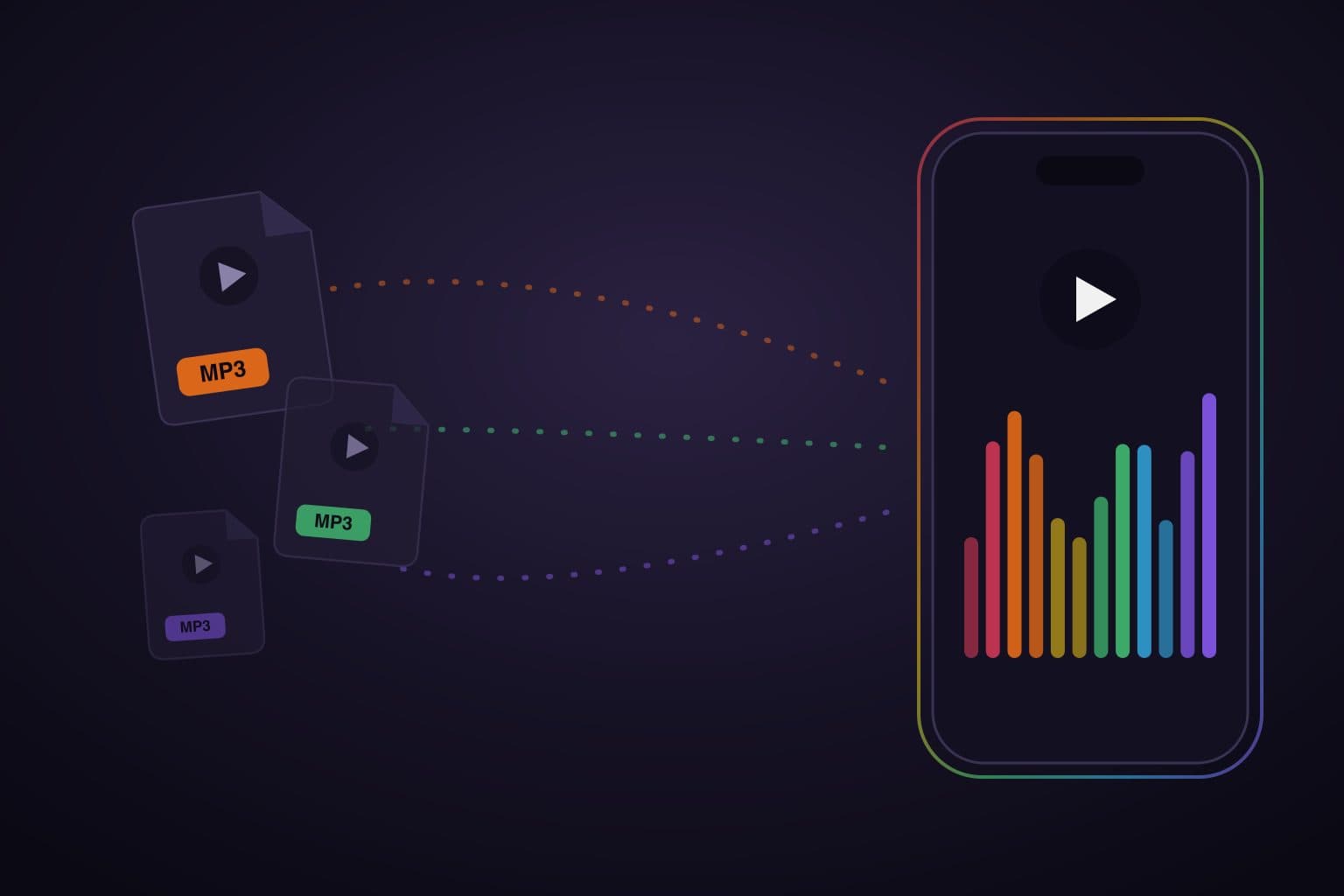
Your iPhone can play FLAC files without converting them. With Prismatic Music, you can bring in the albums you own, browse them by artist or album, and listen offline. No Apple Music subscription required.
FLAC is a music format that keeps the original audio intact. If you've bought a lossless download or saved your CD collection as FLAC, you already have what you need. The next step is getting those files into a player.
Your FLAC albums, ready to play
Download Prismatic Music for free on iPhone and iPad. Import your files and listen offline without an account. Optional Pro features are available.
How to import FLAC on iPhone
Start with one album. Save its FLAC files in the iPhone's Files app, either on your phone or in iCloud Drive. If the album came as a ZIP download, tap the ZIP in Files to unpack it first. Download any cloud files before importing.
Step 1: Choose where your music is saved
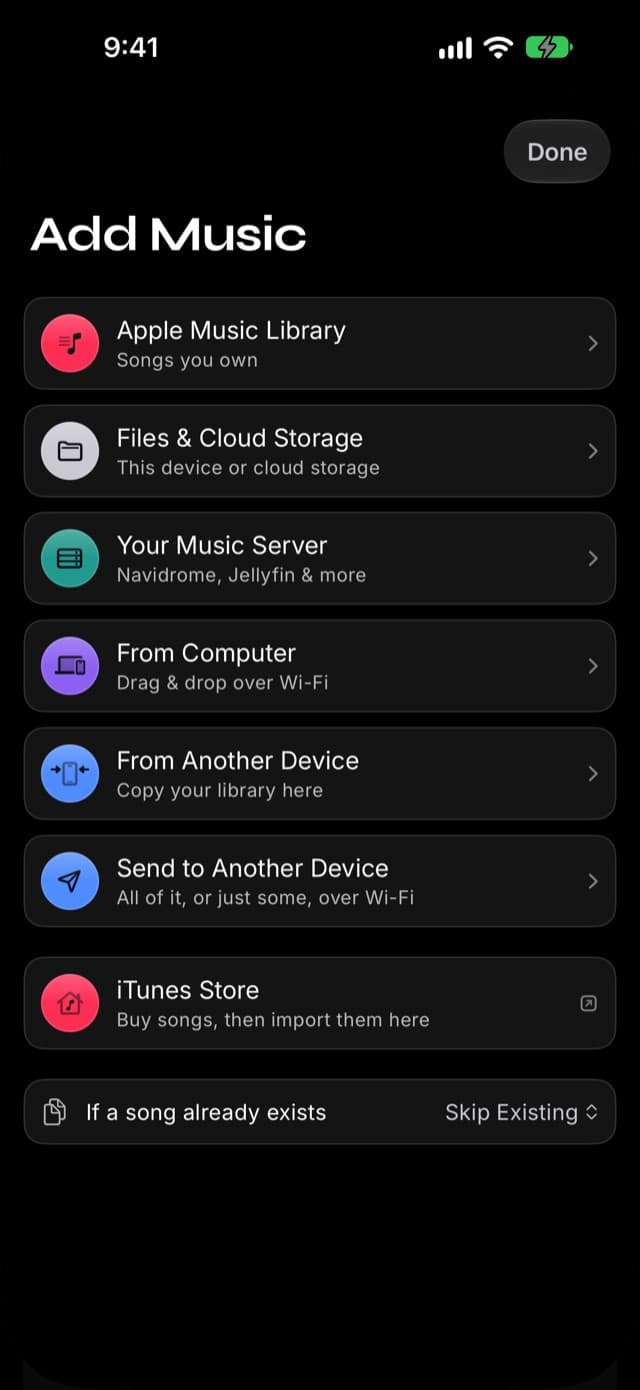
Open Prismatic Music and tap Add Music on the Home tab. Choose Files & Cloud Storage to bring in your FLAC downloads.
Step 2: Browse and select your FLAC files
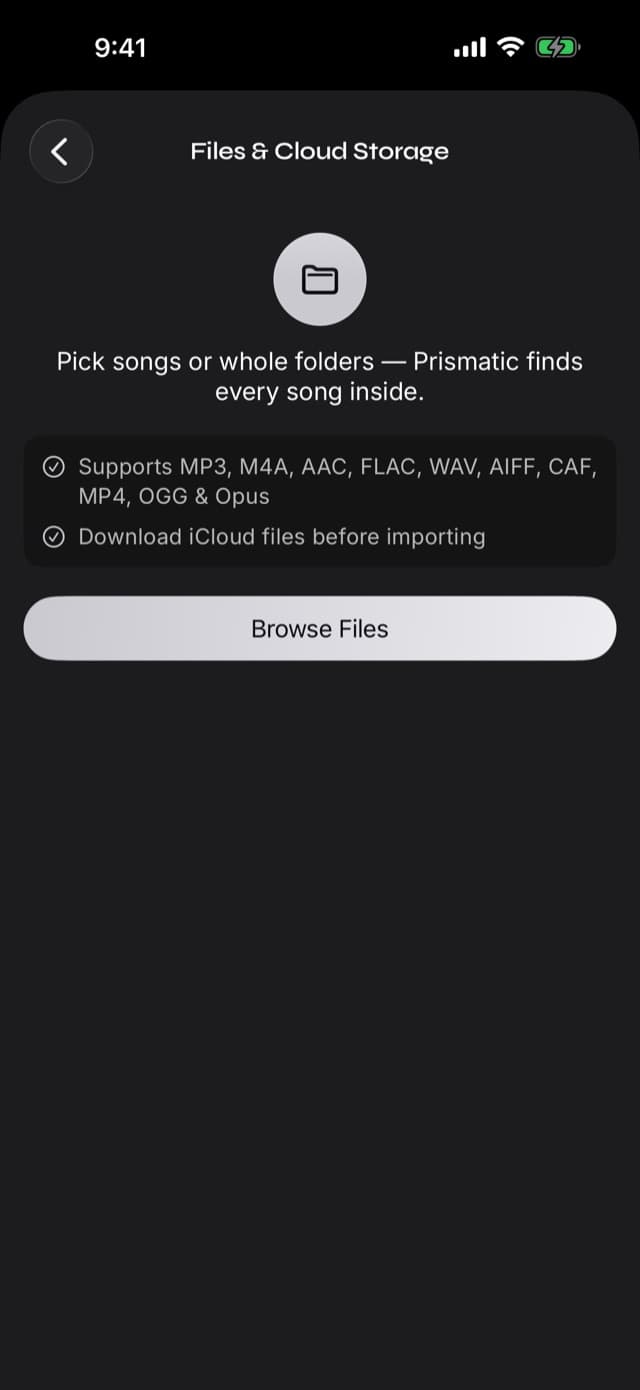
Tap Browse Files. In the file browser that opens, find your album and select the songs or folder you want to import. Prismatic supports FLAC directly, so you can keep your files in their original format.
Leave the app open while your music imports, especially for a large collection.
Step 3: Open your album and press play
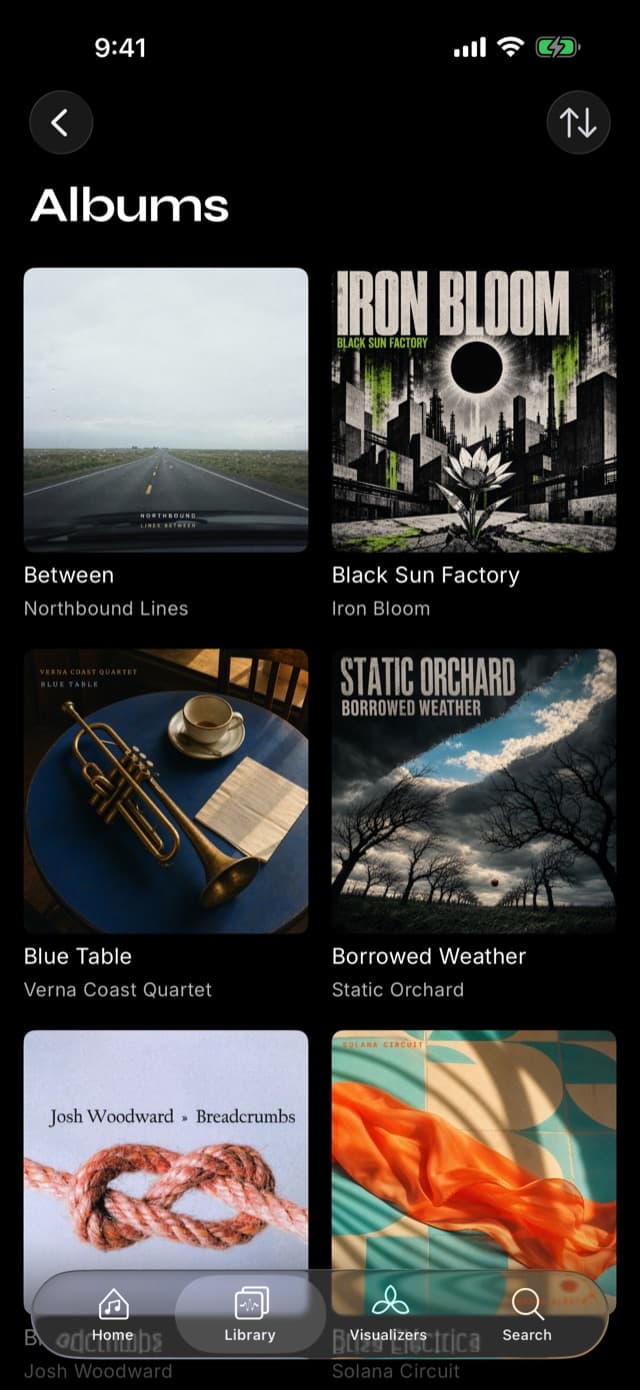
Go to Library → Albums, open your album, and tap Play. Prismatic uses the song details saved in your files to organize your collection. You can also browse by artist, find a song, or add favorites to a playlist.
Your imported music stays on your phone for offline listening. Before a trip, switch on airplane mode and play a few songs to check that everything you want is ready.
Music still on your computer? Choose Add Music → From Computer to transfer it through a web browser over the same Wi-Fi network. Follow the computer-to-iPhone Wi-Fi transfer guide for pairing and upload steps; they work for FLAC too.
Try it with your favorite album
Bring your FLAC files into Prismatic Music, press play, and make the library your own with playlists, an equalizer, and live visualizers.
Can the Apple Music app play FLAC?
The built-in Music app doesn't import FLAC files into its library. Your iPhone can still play them—you just need an app that supports the format, such as Prismatic Music.
Apple uses its own lossless format, ALAC, for lossless listening in Apple Music. Turning on that setting doesn't add your FLAC downloads to the Music app. Apple explains its lossless formats here.
If you want to keep using Apple's Music library, converting FLAC to ALAC is an option. If you'd rather keep your files as they are, import them directly into Prismatic.
FLAC vs ALAC vs AAC
Keep the format you already have. Prismatic Music supports all three, so you don't need to reorganize your collection to get started.
Some audio information is discarded.
| Format | What it means for your music |
|---|---|
| FLAC | Keeps the original audio intact. A good choice for albums you own and want to keep. |
| ALAC | Apple's lossless format. Also keeps the original audio intact and works with Apple's Music library. |
| AAC | Makes smaller files by leaving out some audio information. Useful when phone storage is limited. |
An .m4a filename can contain either lossless ALAC or lossy AAC. Check the codec in the file details before converting; the extension alone does not identify the audio. Apple's ALAC reference describes the lossless codec and its containers.
FLAC albums generally take up more room than AAC or MP3 downloads. Start with the albums you want on your phone and add more as space allows. Longer albums and hi-res downloads need more storage.
Converting an MP3 to FLAC won't improve its sound. Keep your original lossless downloads when you have them; there's no need to turn the rest of your library into FLAC. The FLAC project's FAQ explains how lossless files work if you'd like more detail.
Does lossless matter on Bluetooth?
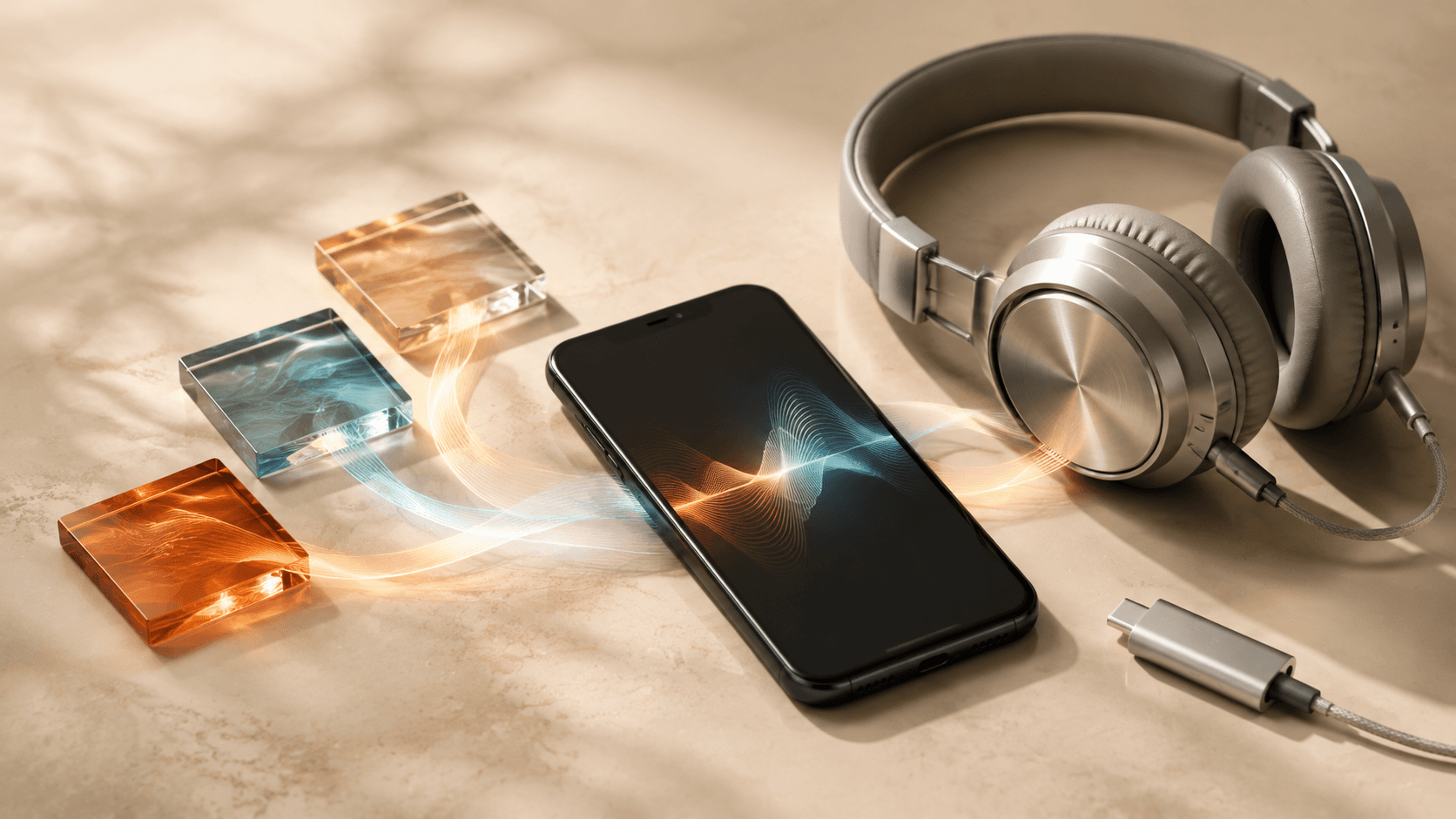
You can use your AirPods or other Bluetooth headphones to listen to FLAC. You don't need new headphones to enjoy the albums you've imported.
Ordinary Bluetooth playback from an iPhone isn't lossless: it compresses the audio for the wireless connection. Your saved FLAC file stays unchanged. For lossless listening, use a compatible wired setup; some headphones need an adapter or an external audio converter, called a DAC. Apple's headphone guidance explains the options.
“Hi-res” describes resolution above CD's 16-bit/44.1 kHz. In that label, bit depth is the precision of each sample and sample rate is the number of samples per second per channel. A 24-bit/96 kHz file can take more storage; the larger numbers do not guarantee a better recording or an audible improvement. Audacity's digital audio guide explains the two measurements.
Getting the file's full resolution to your headphones depends on the playback path. Raising a file's sample rate later does not restore information absent from the original. You don't need hi-res files to enjoy your FLAC collection.
If a live album pauses between songs, that is a different question from lossless quality. Read what gapless playback preserves and how to test a transition.
Four FLAC players for iPhone
We make Prismatic Music. It is built for people who want their own music collection on their phone, with album browsing, playlists, an equalizer, and visuals that react to the music. You can see its supported music formats or compare it with these alternatives.
| Player | A reason to choose it |
|---|---|
| Prismatic Music | Import your albums, listen offline, and enjoy your library with playlists and live visualizers. |
| Doppler | Organize an owned collection and edit song details. |
| Flacbox | Connect to music stored across cloud services and network drives. |
| VLC | Play music and video in one free, open-source app. |
This comparison uses the developers' published features, checked September 4, 2026. For more options, see our offline music player comparison.
Which format should you keep?
If your albums are already FLAC, keep them. Prismatic Music lets you bring them onto your iPhone without converting your collection or signing up for a streaming subscription.
Start with an album you love. Import it, find it in Library, and press play.
Frequently asked questions
- Can I play FLAC on my iPhone without converting it?
- Yes. Prismatic Music plays FLAC files directly. Open Add Music, choose Files & Cloud Storage, and tap Browse Files to import your music. You do not need to convert it to MP3 or buy an Apple Music subscription.
- Can I listen to my FLAC files offline?
- Yes. Once your files are imported into Prismatic Music, you can listen without Wi-Fi or mobile data. Download any files stored in the cloud before importing them, and try playing your music in airplane mode before a trip.
- Is FLAC better than Apple Lossless?
- FLAC and Apple Lossless (ALAC) both preserve the audio from the original recording. Keep the format you already have: Prismatic Music supports both. ALAC is useful if you also want to use Apple's Music library.
- Can I use AirPods with FLAC files?
- Yes. You can listen to FLAC through AirPods or other Bluetooth headphones. Ordinary Bluetooth playback from an iPhone is not lossless, but your saved FLAC files stay unchanged. A compatible wired setup is the option for lossless listening.